 |
Video campaigns allow you to reach and engage with your audience on YouTube, Google TV, and through Google video partners. When you create a Video campaign, you can choose from different campaign goals, campaign subtypes, and ad formats that tell people about your products and services and get them to take action. |
What you’ll learn
A successful Video campaign should include the right targeting, bidding, budget, and ads to reach your goal. This article guides you through the process of creating a Video campaign:
- Choose a goal
- Spend your budget effectively
- Reach people searching for your brand or business
- Organize your ads with ad groups
- Create relevant ads
Optimize your campaign as you create it
As you create your campaign, you may receive notifications based on your setting selections. These notifications may alert you of issues that can result in decreased performance or that may be significant enough to prevent you from publishing your campaign.
The campaign construction navigation menu that appears as you construct your campaign provides a holistic view of your construction progress and will call attention to notifications that you may want to address. Move between steps in the navigation menu to easily review and resolve potential issues with your targeting, bidding, budget, or other campaign settings. Learn how to Set up your campaign for success.
Instructions
This video has been submitted by a third party Google Ads Video Contributor. Google doesn't endorse any products or services that may be promoted in this video. Click here to learn more about the program!
For subtitles in your language, turn on YouTube captions. Select the settings icon at the bottom of the video player, then select "Subtitles/CC" and choose your language.
Step 1 of 5: Choose a goal
When creating a new Video campaign in your Google Ads account, you’ll select one of these campaign goals: Sales, Leads, Website traffic, and Awareness and consideration.
The goal you select should align with what you want to achieve with your campaign. For example, if you want to encourage people to visit your website, you can select Website traffic. Learn more About Video campaign goals.
The goal you choose also determines the campaign subtype you can choose. A campaign subtype determines the ad formats you can use in the campaign to better optimize your campaign towards the goal. For example, if your overall goal is to get people to visit your website and encourage them to make a purchase, you’d select the Drive conversions campaign subtype.
Note: The Product and brand consideration campaign objective has been combined with Brand awareness and reach. You can now find all the same campaign subtypes from both objectives under Awareness and consideration. This merge helps to simplify advertisers goal selection experiences and offers a centralized place for all brand campaign subtypes.
This article doesn't discuss YouTube CPM Masthead campaigns, which are available directly within Google Ads when activated with help from your Google Representative. Learn more about how to Create a YouTube CPM Masthead campaign.
| Campaign objective | Requires account conversions set up? | Campaign subtype and sub-subtype | Available ad formats | Available bid strategies | ||||
|---|---|---|---|---|---|---|---|---|
| Skippable in-stream | In-feed |
Non-skippable in-stream |
Bumper | Out-stream | ||||
| Sales, Leads, Website Traffic | Yes | Drive conversions |
Max conversions or tCPA *Target ROAS and Max conversion value become available after you've built up enough conversions |
|||||
| Awareness and consideration | No | Get views | Max CPV | |||||
| Ad sequence | Max CPV or tCPM | |||||||
| Outstream (under allowlist) | vCPM | |||||||
| Video reach - Efficient reach | tCPM | |||||||
| Video reach - Non-skippable in-stream | |
tCPM | ||||||
| Video Reach - Target Frequency | tCPM | |||||||
| YouTube engagements | Max conversions or tCPA | |||||||
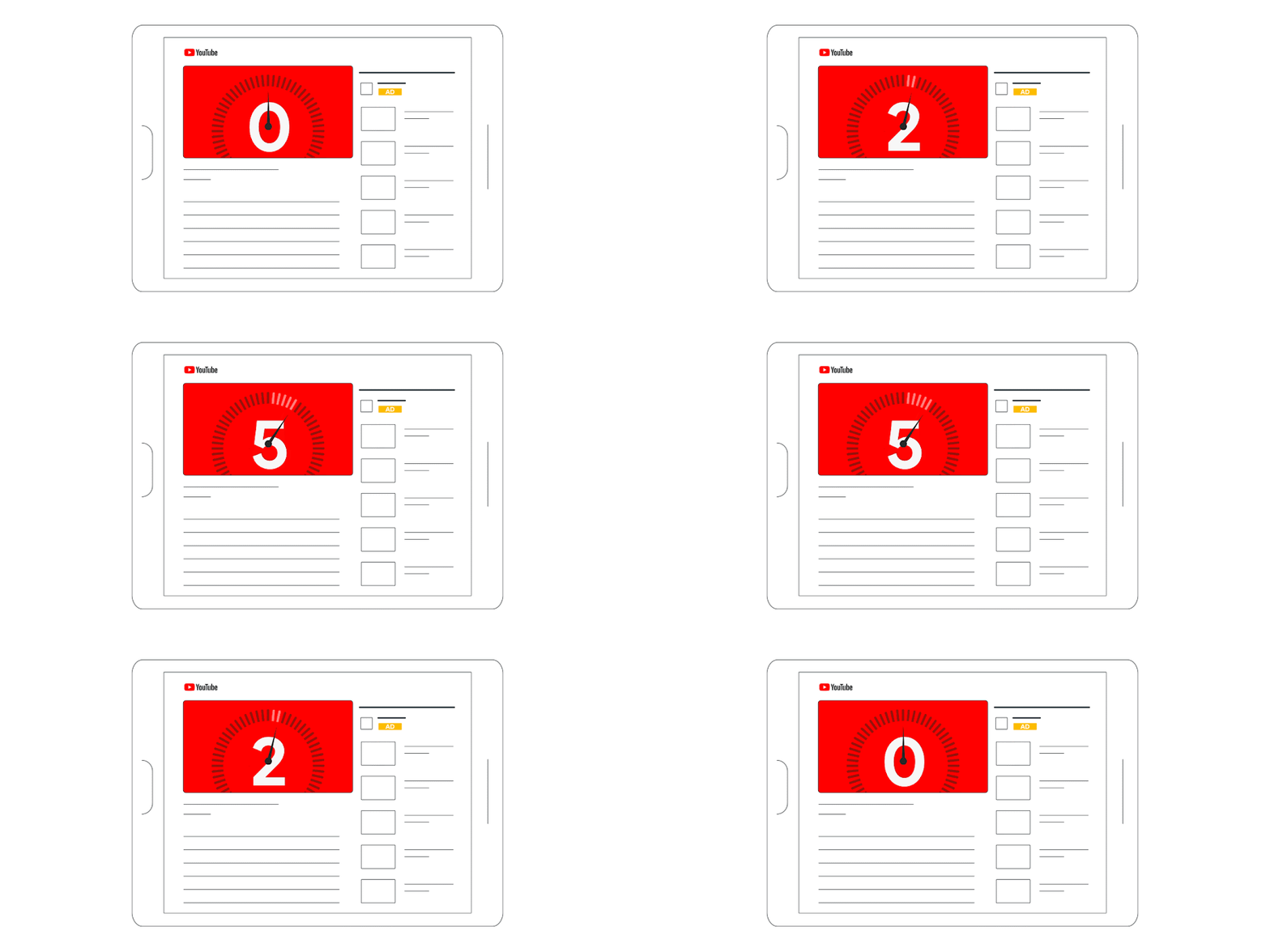
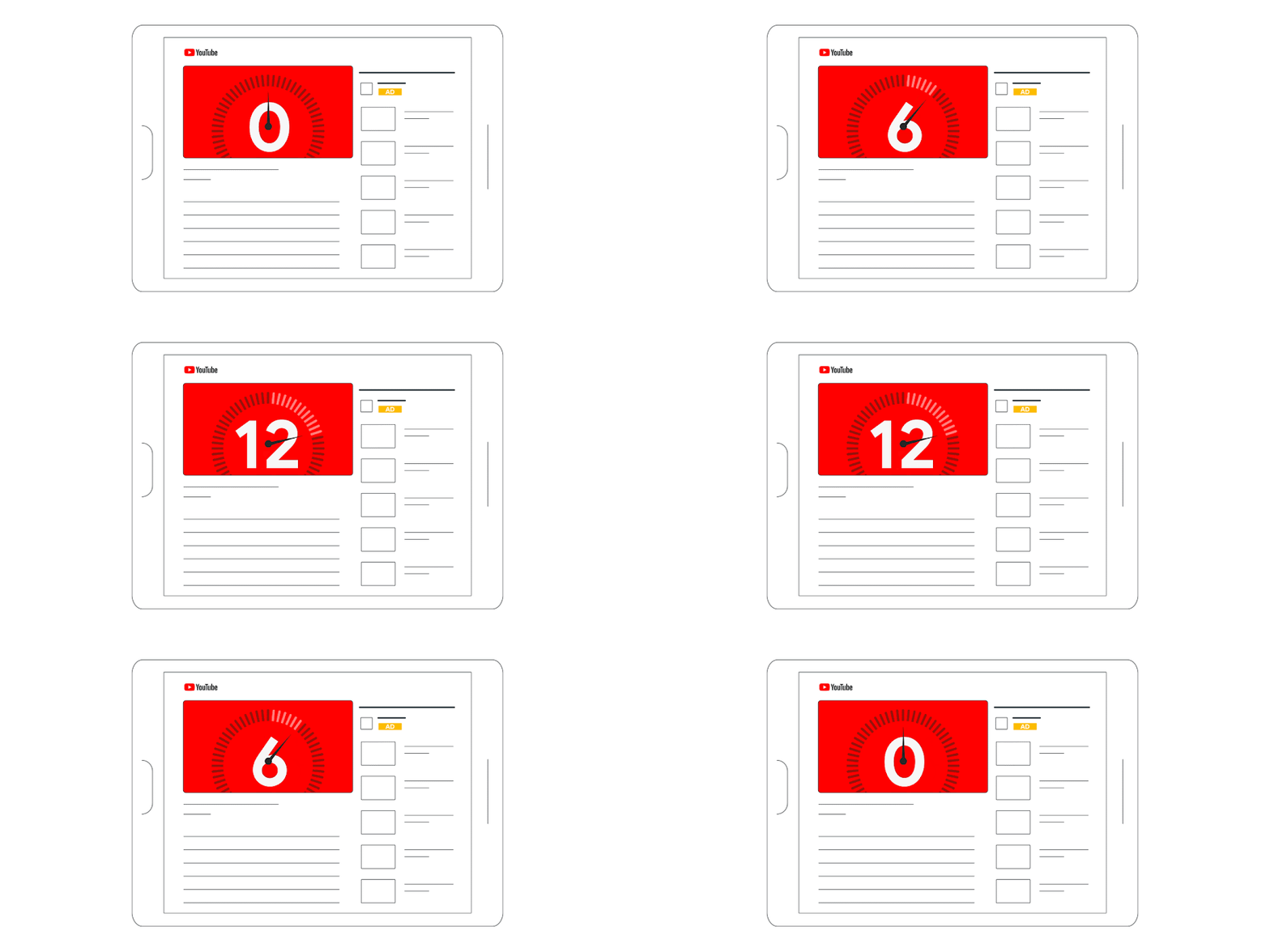
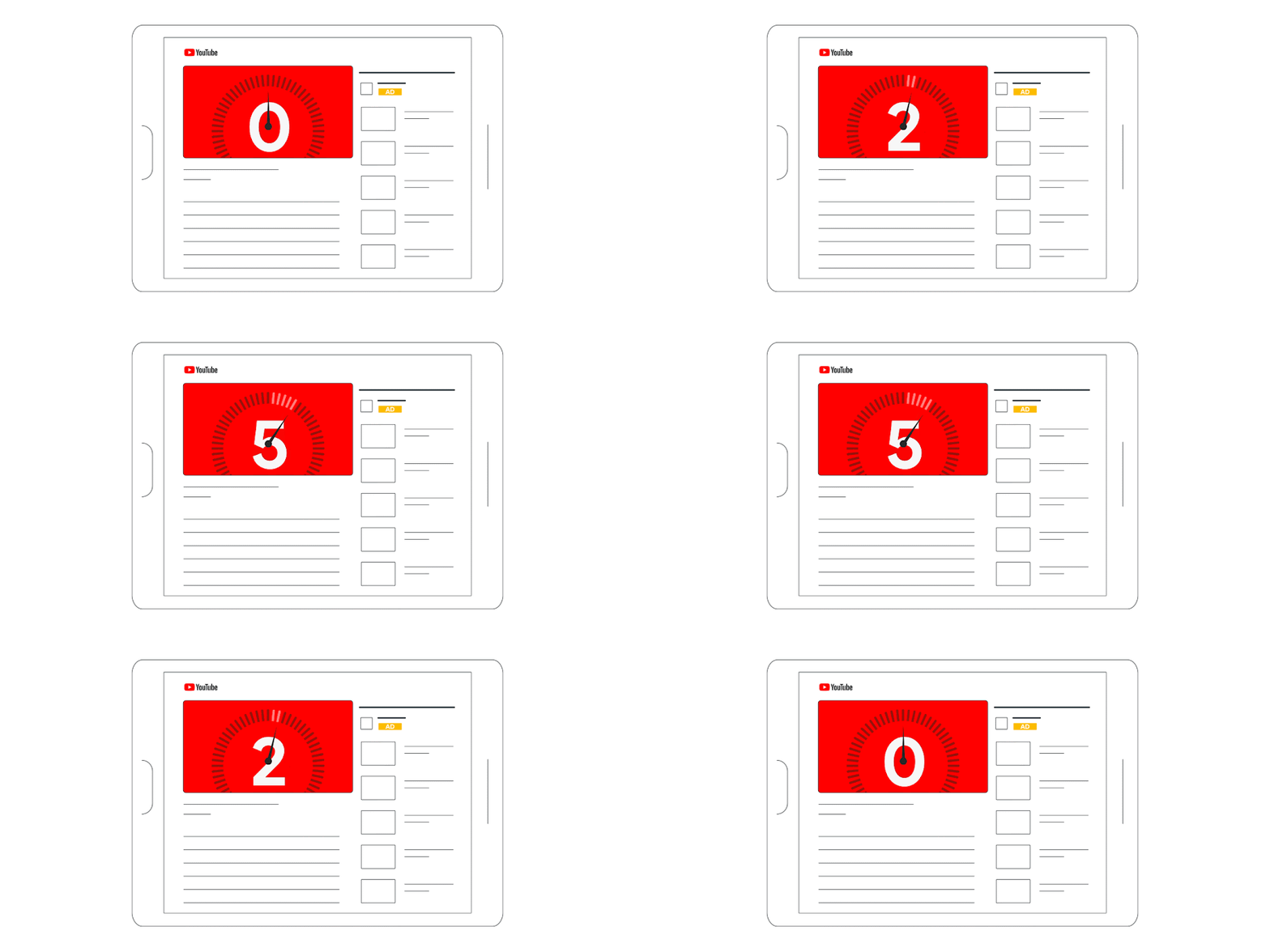
| Skippable in-stream | In-feed | Non-skippable in-stream | Bumper | Outstream |
|---|---|---|---|---|
 |
 |
 |
||
| Videos under 3 Minutes | No max video length | Max 15-20 seconds | Max 6 seconds | No max video length |
| Views reported | Views reported | No paid views reported | No paid views reported | Views reported |
Create a new campaign and set a goal
- In your Google Ads account, click the Campaigns icon
.
- Click the Campaigns drop down in the section menu.
- Click Campaigns.
- Click the plus icon
, then select New campaign.
- Choose your campaign goal: Sales, Leads, Website traffic, or Awareness and consideration.
- The goal you select determines the campaign subtypes available.
- If you don’t have a campaign goal in mind, choose Create a campaign without a goal’s guidance.
- Under the “Select a campaign type” section, select Video.
- Under the “Select a campaign subtype” section, select a campaign subtype. Review how each subtype can help you reach your specific advertising goals:
- Drive conversions: Drive sales and leads with action-focused ads and targeting.
- Custom video campaign: Customize your settings with different ad types.
- Video reach campaign: Get the most reach for your budget. Within this campaign subtype, you can choose to reach more unique users using bumper ads, skippable in-stream ads, or an optional mix of both formats called Efficient reach, or choose to reach users with your entire message using Non-skippable in-stream.
- For Efficient reach, Non-skippable in-stream, and Masthead campaigns, you can select how you buy ads by choosing between Auction or Reservation.
- Get views: Get people to consider your product with your ads.
- Outstream: Tailor your ads to phones and tablets.
- Ad sequence: Tell a story with a series of ads in a sequence.
- Shopping: Promote your products and get people to shop on your website.
- YouTube engagements: Get subscriptions and drive engagement on YouTube with video ads designed to encourage valuable interactions.
- Click Continue.
Soon, “Custom video campaign” will no longer be available. The campaign subtype is being split into “Get views” and “Efficient reach”.
“Get views” is recommended for video advertisers who want more engagement with their campaigns. With a maximum cost-per-view bid strategy (Maximum CPV), you can set the amount you want to spend when someone watches one of your video ads.
“Efficient reach” is recommended for video advertisers who want to reach as many people as possible. With a target cost-per-thousand-impressions bid strategy (Target CPM), you set the amount you want to spend for every 1,000 times your video ads are shown.
Step 2 of 5: Spend your budget effectively
Your budget influences how often your ads show and how prominently they’re featured.
Your bidding determines the way your budget is spent. You can choose to put your money towards getting people to view your ad, click your ad, or make a conversion on your site. Learn more about campaign budgets and bidding.
Set up your bid strategy and budget
| CPV (Cost per view) | CPM (Cost per thousand impressions) | vCPM (Cost per viewable thousand impressions) | Target CPA (Cost per acquisition) | Target ROAS (Return on ad spend) | Maximize conversions | Maximize conversion value | Manual CPC bidding | Enhanced cost per click (ECPC) | Maximize clicks | |
|---|---|---|---|---|---|---|---|---|---|---|
| Available in video? | Yes | Yes | Yes | Yes | Yes | Yes | Yes | No | No | No |
| Requires conversions? | No | No | No | Yes | Yes | Yes | Yes | No | No | No |
| Manual or automated? | Manual | Manual | Manual | Automated | Automated | Automated | Automated | Manual | Automated | Automated |
| How are you charged? | Per view | Per 1,000 impressions | Per 1,000 viewable impressions | Per 1,000 impressions | Per 1,000 impressions | Per 1,000 impressions | Per 1,000 impressions | Per click | Per click | Per click |
| What it optimizes for? | N/A - Manual | N/A - Manual | N/A - Manual | Conversions at target | Return on ad spend | Conversions | Conversion value | N/A - Manual | Clicks | Clicks |
- Choose your bid strategy. Your bid strategy is how you optimize bids to meet your advertising goals.
For example, your bid strategy lets us know if your goal is to get views (CPV), get impressions (CPM), get as many conversions at the target cost-per-action you set (CPA), or get the most conversions within your budget.
- Enter your budget. You can choose a campaign total budget (the amount you’d like to spend on the entire campaign) or a daily budget (the average amount you want to spend each day).
Campaign total budget
Google Ads will try to spend your total budget evenly over the duration of your campaign while taking into account higher and lower traffic days to optimize your campaign’s performance. You’ll only be billed up to the amount you enter for a campaign, even if Google Ads serve more views or impressions than your budget allows.
Daily budget
On days when you’re more likely to get clicks and conversions, you may spend more. However, over the course of the month, your budget will average out to the amount you enter in Google Ads.
- Set a start date and end date for your campaign. This is required if you use a campaign total budget.
If your campaign spends the budget fully, either reaching the daily limit (for daily budgets) or the average per day budget (for campaign total budgets), think about increasing your budget to scale your success. If not, adjust your targeting, bidding, and ads to check if your campaign performs better.
Step 3 of 5: Reach people searching for your brand or business
In your campaign, you can reach people in a certain location, those who speak a specific language, or those with a particular interest using campaign targeting. Google Ads also allows you to add content exclusions to your campaigns, so that you can make sure your ads don’t run next to sensitive content. Learn more About targeting for Video campaigns.
Set up campaign targeting
- Choose the networks where you want your ads to run. A network is a place where your ads can appear. These can include:
Video partners on the Display Network
Otherwise known as Google video partners, your ads can appear on sites and apps on the Display Network. It’s recommended to keep this option selected, as it can help you expand your reach beyond YouTube.
YouTube
YouTube shows ads across several properties, such as search results, YouTube videos, channel pages, and the YouTube homepage.
Google TV
Google TV shows ads on Google TV channels and top video-streaming apps on the Google TV platform. Currently the Google TV network is only available in the U.S.
- Select the language preferences for your ads. Depending on the languages you select, your ads will show to people who watch Google TV or visit sites and apps that match the languages. Learn more About language targeting.
- Select the geographic locations of the users to whom your ads will appear. Learn how to Target ads to geographic locations.
- Choose your content exclusion settings, which lets you opt out of showing your campaigns alongside content that may not be appropriate for your brand or product.
Inventory types
With inventory types, you can opt out of groups of sensitive content that don’t align with the brand or message of your campaign. Learn more About content exclusions for Video campaigns.
Excluded types and labels
Select content types and digital content labels to exclude from your Video campaign. For example, you can exclude your ads from running next to live streaming videos or content labeled for mature audiences. Learn more About content exclusions for Video campaigns.
- (Optional) Click Additional settings to set up device-specific targeting, limit how frequently your ads show to people, or set up an ad schedule.
Device targeting
Device targeting narrows your reach to target specific devices. The devices you can target include computers, mobile, tablets, and TV screens. Learn more About device targeting.
After you set up campaign targeting, you’ll set up ad group targeting.
Step 4 of 5: Organize your ads with ad groups
You can create ad groups to organize your ads by a common theme. For example, if you sell desserts, beverages, and snacks on your website, you could create one ad group for each product category (for a total of 3 ad groups). With ad groups, you can refine your targeting to better reach your intended audience.
- Define the people that you want to reach with your ads. You can choose from:
- Demographics: With demographic targeting, you can reach people who are likely to be in demographic groups that you choose, including age, gender, parental status, or household income. Learn more About demographic targeting.
- Audiences: Audiences are groups of people with specific interests, intents, and demographics, as estimated by Google. Learn more About audience targeting.
- Narrow your targeting by adding relevant keywords, topics, and placements. Avoid adding too many keywords, topics, or placements, as it may prevent you from reaching your audience.
Now that you’ve set up your targeting, you can begin creating your ads.
Step 5 of 5: Create relevant ads
When creating your ads, focus on giving your ads relevant headlines, calls-to-action, and other creative features that inspire your viewers to take action. You can create multiple ads (up to 30) when building your campaign. You can create a video in the Asset library using our predefined templates, or select a video you’ve uploaded to YouTube.
Create a video using Asset library
Google Ads Tutorials: Video creation in Google Ads
For subtitles in your language, turn on YouTube captions. Select the settings icon at the bottom of the video player, then select "Subtitles/CC" and choose your language.
You can create a video for your campaign in the Asset library. You can also create a video while you’re creating a new Video campaign.
- In your Google Ads account, click the Tools icon
.
- Click the Shared library drop down in the section menu.
- Click Asset library.
- Click the plus button
- Choose a template for your video. You can click the templates to preview them before you make a selection.
- Add assets to your template. Some assets you might need are the HEX codes for your brand’s logo, colors, images, and text.
- You can pick predefined fonts and music from the Google Ads library.
- You can crop your images to fit the template if needed.
- You can use the recommendations provided by the tool for the type and size of the asset, for example, a lifestyle or a product image.
- After all assets have been selected, you can use the scenes updated in the Storyboard on the bottom of the screen to get a preview of how the video will appear.
- Click Create video after adding all the assets.
- Wait for your video to generate. This might take several minutes.
- When your video is complete, you can preview it.
- By default, the video will be muted, but you can unmute it to watch it with the soundtrack. If you need to make more changes, select Edit video to make additional edits.
- When you’re satisfied, select the YouTube channel where you’d like to upload it.
- Before selecting the YouTube channel, confirm that:
- Your YouTube channel is connected to your Brand Account by checking the instructions in Add or remove access to your YouTube channel. If you don’t have a Brand Account channel on YouTube:
- You can follow the guidance in Move your YouTube channel to another account to migrate your channel to a Brand Account.
- You can use channel permissions in YouTube Studio for your channel.
- You can check this by selecting “Permissions” with YouTube Studio and clicking “Move your permissions to YouTube Studio”.
- Learn more about channel permissions on YouTube Studio with a Brand Account
- Your email has “Editor”, “Editor (Limited)”, “Manager”, or “Owner” rights to the YouTube channel by following these instructions.
- If you don't have any rights, identify the owner of the YouTube channel you’re trying to connect to and ask them to secure the permissions.
- Your YouTube channel is connected to your Brand Account by checking the instructions in Add or remove access to your YouTube channel. If you don’t have a Brand Account channel on YouTube:
- If you can’t figure out who the owner is or how to manage a Brand Account, you can still use Video Creation.
- Google Ads will create an internal “house” channel for you. There are some limitations to this approach:
- The videos in this “house channel” will be unlisted.
- You won’t be able to use some Google Ads functionalities like video ads sequencing.
- You won’t be able to edit any video details, such as the name, description, or tags.
- To delete a video here, go to your Asset library, hover over the video, click the 3-dot icon
at the top right corner, and click Delete from YouTube.
- You can create a new channel that you own.
- Google Ads will create an internal “house” channel for you. There are some limitations to this approach:
- Click Return to Asset library. Your new video is saved here.
- Note that your generated video can't be edited after being saved, and you’ll need to create a new video if you need further changes.
- You can also create a video while you’re creating a new Video campaign.
- When you’re selecting a video, under “Need a new video?”, click Create one in just a few simple steps. This will open a new tab in your browser.
 at the top right corner, and click Delete from YouTube.
Create your ads
- Search for a video that you’ve uploaded to YouTube, or enter the video URL from YouTube.
- You can also select a video you created from the Asset library, or create a video while you’re creating your campaign.
- Choose an eligible ad format. You’ll get a message in Google Ads if a specific ad format isn't eligible for the campaign. Depending on the goal that you selected, you can choose:
- Use the editor to create your ad. Creative options available to you may differ depending on the ad format.
Creative options available across all ad formats
- Your YouTube video: Search for a video you’ve uploaded or paste the video URL from YouTube.
- Final URL: Provide the final URL, which is the landing page people visit when they interact with your ad. Final URL can be the same or different from the display URL and it won’t affect the page that people land on when clicking your ad.
- Call-to-action: Enter a call-to-action that compels people to click on the ad. The call-to-action appears as a button on ads and sends people to the URL you used for the final URL.
Creative options available for specific ad formats
- Headline: Enter a headline that promotes your product or service. Available for skippable in-stream ads, non-skippable in-stream ads, and bumper ads.
- Display URL: Provide the display URL, which is the website address that appears in your ad, and as long as 255 characters. Display URL can be the same or different from the final URL. Available for skippable in-stream ads, non-skippable in-stream ads, and bumper ads.
- Long headline: Enter a longer version of the headline that promotes your product or service. Available for in-feed video ads.
- Description: Enter a description of the product or service. Available for in-feed video ads.
- (Optional) Click Ad URL options (advanced) to add a tracking template, final URL suffix, or custom parameters to the final URL. Tracking parameters can help you track where your traffic is coming from, such as mobile devices.
- Add a companion banner to generate an image or a group of images that appear next to your video. Companion banners appear on computers only. You can select either an image that's automatically generated from the videos in your YouTube channel (recommended), or an image that you manually upload as your companion banner.
- Enter a name for your ad.
- To create another ad in the same campaign, click New video ad.
- If the ad looks good, click Create campaign.
Add voice-over to video
- In your Google Ads account, click the Tools icon
- Click the Shared library drop down in the section menu.
- Click Asset library.
- Click the plus button
- Click Add voice-over.
- You can choose to add voice-over on an existing video in the Asset Library. Choose a video, click on the
- You can choose to add voice-over on an existing video in the Asset Library. Choose a video, click on the
- Select source video.
- You have the option of choosing a source video from YouTube or from the ones created in Google Ads.
- Note that the video can be up to a maximum duration of 140 seconds.
- Click Enhance video.
- Under the “Voice-over messages” text box, enter your voice-over. You can add up to 5 voice-overs. Each voice-over message can have up to 150 characters. For each new voice-over, click + Add Message.
- You can set the start times of the messages in the video. Your voice-over messages can’t overlap, so your next voice-over will begin only when the current one ends.
- Scroll right to left along the video volume bar to edit the video volume. Video volume is set at 80% by default.
- Click on the video image under “Selected Video” to preview the video.
- You can select the voice type by clicking the dropdown button “Select a voice type”. You can choose from 7 options in English-US, and 2 options in all other languages.
- You can select the language of the voice from one of the currently supported languages, which include English-US, English-UK, English-IN, English-AU, Hindi, French, Spanish, Indonesian, Malaysian, Mandarin, Filipino, Korean and Swedish.
- Scroll right to left along the video volume bar to edit the voice-over volume.
- You can preview the generated video with voice-over by clicking Load preview. Note that the preview will take a few minutes to load.
- When you're satisfied with the voice-over and message, click Create video.
- Enter a title for your voice-over video. We also auto-generate a name for the video.
- Click Upload video to upload the video to a YouTube channel.
- To complete setting up your video, refer to Create a video using asset library (steps 11-13).
What’s next
After you've finished setting up your campaign, it may take a few days for your ads to start showing. Ads are typically approved within a day. It may take longer for bidding to fully optimize performance.
Optimize your Video campaign
Want to make your Video campaigns even better? Learn best practices and tips in our optimization guides.
- Google AI for Video Advertising
- Drive sales, leads and web traffic with Video action campaigns
- Use square and vertical video to engage mobile customers
Learn more about Video campaign subtypes
For more specific instructions on campaign subtypes, check out: