You can tell what your speaker is doing or its status by its lights.
Gemini for Home voice assistant began rolling out in early access on Google speakers and displays on October 28, 2025, with a broader release to follow. Learn more about Gemini for Home voice assistant.
The behavior of the LED lights on your speaker depends on whether you have Google Assistant or Gemini for Home voice assistant.
Choose your device
The colors of the lights and how they move depend on the device. To learn what the lights on your device means, choose your device below.
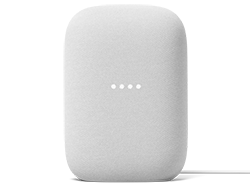 |
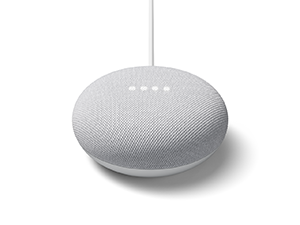 |
|
|---|---|---|
| Google Home Speaker | Google Nest Audio |
Google Home Mini (1st gen) or Nest Mini (2nd gen) |
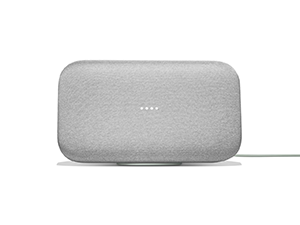 |
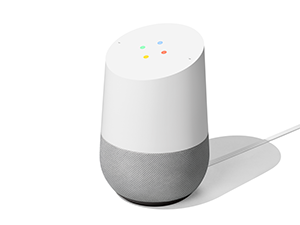 |
Other speakers that work with "Hey Google" |
| Google Home Max |
Google Home |
Adjust the brightness of the lights on Google Home Speaker
Important: When the mic is on, your speaker lights can be dimmed but can’t be turned off. When the mic switch shows orange, you can completely turn off the mic off light using the Google Home app. To mute the mic, you need to turn off the physical mic switch on the device. Learn about Google Nest’s commitment to privacy in the home.
- Open the Google Home app
.
- Tap Home
All devices
, then touch and hold your device's tile.
- Tap Settings
- To dim the lights, drag the slider to the left.
- To brighten the lights, drag the slider to the right.
- Tap On or Off to control the orange mic off light.

 All devices
Gemini for Home voice assistant
|
Description of lights |
What this means |
|
Rainbow gradient |
Your voice assistant detected "Hey Google" and is waiting for your question or command. |
|
White light ring pulsing with your voice |
Your voice assistant is listening. |
|
Gradient lights spinning clockwise |
Your voice assistant is thinking. |
|
Gradient lights pulsing with Gemini's voice |
Your voice assistant is responding. |
|
Gradient lights pulsing fast |
Your voice assistant completed your request but didn't respond verbally. |
Learn about Data privacy and Gemini for Home.
Setup
| Description of lights | What this means |
|
White light ring pulsing slowly |
Google Home Speaker is ready to set up. Learn how to set up your device. |
|
White light ring spinning clockwise |
Your speaker is connecting to Wi-Fi. |
|
White light ring spinning clockwise |
Your speaker is downloading an update. |
System
| Description of lights | What this means |
|
White light ring spinning clockwise |
Your speaker is booting up. |
|
Pulsing orange light |
The microphone is off. Your voice assistant can't detect "Hey Google" or respond. To turn the mic on or off, slide the mic switch at the bottom of the speaker. When the mic is off, the light ring glows orange. |
|
Pulsing yellow light |
Your speaker is confirming that you want to perform a factory reset. |
|
Pulsing white light |
An alarm is ringing. |
|
A timer is ringing. |
|
|
White light ring pulsing partially |
Your speaker is reminding you that a notification is available. To get the notification, say "Hey Google, what's up?." |
Volume
| Description of lights | What this means |
|
Pulsing orange light |
The mic is off. |
|
Light ring changes brightness |
The volume level is 1 to 20. |
Error
| Description of lights | What this means |
|
Yellow light ring pulsing fast |
Your device doesn’t have enough power or has a network error. |
Gemini for Home voice assistant
| Description of lights | What this means |
|---|---|
|
Rainbow gradient |
Gemini for Home voice assistant detected "Hey Google" and is waiting for your question or command. |
|
4 white lights flash and then fade |
Gemini for Home voice assistant detected "Hey Google" but didn't recognize a question or command. If you meant to make a request, try again. |
|
4 white lights pulse quickly |
Gemini for Home voice assistant is listening. |
|
Purple lights continuously run left to right |
Gemini for Home voice assistant is thinking. |
|
Purple lights continuously pulse |
Gemini for Home voice assistant is responding. |
|
4 purple lights flash twice and then fade |
Gemini for Home voice assistant understands your request but didn't respond verbally. For example, after you say "Next" while a song is playing. |
|
4 solid orange lights |
The microphone is off. Gemini for Home voice assistant can't detect "Hey Google" or respond. To turn the mic on or off, next to the power cord, slide the mic switch. |



Learn more on Data security and privacy on Google smart home devices.
Google Assistant
| Description of lights | What this means |
|---|---|
|
4 white lights |
Google Assistant detected "Hey Google" and is waiting for your question or command. |
|
4 white lights flash and then fade |
Google Assistant detected "Hey Google" but didn't recognize a question or command. If you meant to make a request, try again. |
|
4 white lights pulse quickly |
Google Assistant is listening. |
|
White lights continuously run left to right |
Google Assistant is thinking. |
|
White lights continuously pulse |
Google Assistant is responding. |
|
4 white lights flash twice and then fade |
Google Assistant understands your request but didn't respond verbally. For example, after you say "Next" while a song is playing. |
|
4 solid orange lights |
The microphone is off. Google Assistant can't detect "Hey Google" or respond. To turn the mic on or off, next to the power cord, slide the mic switch. |




Learn more on Data security and privacy on Google smart devices.
Setup
| Description of lights | What this means |
|---|---|
|
White lights slowly pulse |
Your speaker is ready to set up. |
|
4 solid blue lights |
Your speaker needs to be verified by you. |
|
White lights run back and forth |
Your speaker is connecting to Wi-Fi. |
|
White lights light up from left to right |
Your speaker is downloading or installing an update. |




System
| Description of lights | What this means |
|---|---|
|
Rainbow gradient lights light up from left to right
|
Your speaker is booting up. |
|
White lights slowly pulse |
An alarm or a timer is ringing. Learn how to: |
|
One solid white light shows for about 10 minutes |
Your speaker is reminding you that a notification is available. To get the notification, say "Hey Google, what's up?." |


Volume
| Description of lights | What this means |
|---|---|
|
4 dim white lights flash when you make a volume control gesture |
The volume is muted. |
|
1 to 4 white lights show when you make a volume control gesture |
The volume level is 1 to 20. |


Error
| Description of lights | What this means |
|---|---|
|
2 solid red lights |
An update is taking longer than expected. |

Gemini for Home voice assistant
| Description of lights | What this means |
|---|---|
|
Rainbow gradient |
Gemini for Home voice assistant detected "Hey Google" and is waiting for your question or command. |
|
4 white lights flash and then fade |
Gemini for Home voice assistant detected "Hey Google" but didn't recognize a question or command. If you meant to make a request, try again. |
|
4 white lights pulse quickly |
Gemini for Home voice assistant is listening. |
|
White lights continuously run left to right |
Gemini for Home voice assistant is thinking. |
|
White lights continuously pulse |
Gemini for Home voice assistant is responding. |
|
4 white lights flash twice and then fade |
Gemini for Home voice assistant understands your request but didn't respond verbally. For example, after you say "Next" while a song is playing. |
|
4 solid orange lights |
The microphone is off. Gemini for Home voice assistant can't detect "Hey Google" or respond. To turn the mic on or off, next to the power cord, slide the mic switch. |
Learn about Data privacy and Gemini for Home.
Google Assistant
| Description of lights | What this means |
|---|---|
|
4 white lights |
Google Assistant detected "Hey Google" and is waiting for your question or command. |
|
4 white lights flash and then fade |
Google Assistant detected "Hey Google" but didn't recognize a question or command. If you meant to make a request, try again. |
|
White lights continuously run left to right |
Google Assistant is thinking. |
|
White lights continuously pulse |
Google Assistant is responding. |
|
4 white lights flash twice and then fade |
Google Assistant understands your request but didn't respond verbally. For example, after you say "Next" while a song is playing. |
|
4 solid orange lights |
The microphone is off. Google Assistant can't detect "Hey Google" or respond. To turn the mic on or off, next to the power cord, slide the mic switch. |
Learn more on Data security and privacy on Google Nest and Home devices.
Setup
| Description of lights | What this means |
|---|---|
|
White lights slowly pulse |
Your speaker is ready to set up. |
|
4 solid blue lights |
Your speaker needs to be verified by you. |
|
White lights run back and forth |
Your speaker is connecting to Wi-Fi. |
|
White lights light up from left to right |
Your speaker is downloading or installing an update. |
System
| Description of lights | What this means |
|---|---|
|
Google Nest Mini: Depending on your device color, multi-colored or white lights light up from left to right Google Home Mini: Multi-colored lights light up from left to right |
Your speaker is booting up. |
|
Google Home Mini only: Orange lights countdown |
Your speaker is confirming that you want to perform a factory reset. A reset is confirmed when there are 4 orange lights. |
|
White lights slowly pulse |
An alarm or a timer is ringing. Learn how to: |
|
One solid white light shows for about 10 minutes |
Your speaker is reminding you that a notification is available. To get the notification, say "Hey Google, what's up?." |


Volume
| Description of lights | What this means |
|---|---|
|
4 dim white lights flash when you make a volume control gesture |
The volume is muted. |
|
1 to 4 white lights show when you make a volume control gesture |
The volume level is 1 to 10. |
|
Google Nest Mini only: Lights up as your hand gets close to the device when music is playing |
Nest Mini detected a hand. |

Error
| Description of lights | What this means |
|---|---|
|
2 solid red lights |
An update is taking longer than expected. |
Google Assistant or Gemini for Home voice assistant
| Description of lights | What this means |
|---|---|
|
4 white lights |
Your voice assistant detected "Hey Google" and is waiting for your question or command. |
|
4 white lights flash and then fade |
Your voice assistant detected "Hey Google" but didn't recognize a question or command. If you meant to make a request, try again. |
|
White lights continuously run left to right |
Your voice assistant is thinking. |
|
White lights continuously pulse |
Your voice assistant is responding. |
|
4 white lights flash twice and then fade |
Your voice assistant understands your request but didn't respond verbally. For example, after you say "Next" while a song is playing. |
|
4 solid orange lights |
The microphone is off. Your assistant can't detect "Hey Google" or respond. To turn the mic on or off, on the back of Google Home Max, slide the mic switch. |
Learn about Data privacy and Gemini for Home.
Setup
| Description of lights | What this means |
|---|---|
|
White lights slowly pulse |
Google Home Max is ready to set up. |
|
4 solid blue lights |
Google Home Max needs to be verified by you. |
|
White lights run back and forth |
Google Home Max is connecting to Wi-Fi. |
|
White lights light up from left to right |
Google Home Max is downloading or installing an update. |
System
| Description of lights | What this means |
|---|---|
|
Multi-colored lights light up from left to right |
Google Home Max is booting up. |
|
Orange lights countdown |
Google Home Max is confirming that you want to perform a factory reset. A reset is confirmed when there are 4 orange lights. |
|
White lights slowly pulse |
An alarm or a timer is ringing. Learn how to: |
|
One solid white light shows for about 10 minutes |
Google Home Max is reminding you that a notification is available. To get the notification, say "Hey Google, what's up?." |
|
White lights quickly pulse |
Google Home Max is skipping a track. |
|
White lights slowly pulse |
Google Home Max is pairing with another speaker for stereo sound. |
Volume
| Description of lights | What this means |
|---|---|
|
4 dim white lights flash when you make a volume control gesture |
The volume is muted. |
|
1 to 4 white lights show when you make a volume control gesture |
The volume level is 1 to 10. |
Error
| Description of lights | What this means |
|---|---|
|
2 solid red lights |
An update is taking longer than expected. |
Google Assistant or Gemini for Home voice assistant
| Description of lights | What this means |
|---|---|
|
Multi-colored lights spin clockwise and pulse |
Voice assistant detected "Hey Google" and is waiting for your question or command. |
|
Multi-colored lights continuously spin clockwise |
Voice assistant is thinking. |
|
Multi-colored lights continuously pulse |
Voice assistant is responding. |
|
4 solid orange lights |
The microphone is off. Voice assistant can't detect "Hey Google" or respond. To turn the mic on or off, on the back of Google Home, press the microphone mute button. |
Learn about Data privacy and Gemini for Home.
Setup
| Description of lights | What this means |
|---|---|
|
4 white lights slowly pulse |
Google Home is ready to set up. |
|
4 blue lights slowly pulse |
Google Home needs to be verified by you. |
|
4 white lights spin clockwise |
Google Home is connecting to Wi-Fi. |
|
White lights light up from top to bottom |
Google Home is downloading an update. |
|
6 white lights spin clockwise |
Google Home is installing an update. |


System
| Description of lights | What this means |
|---|---|
|
White and multi-colored lights spin and blink |
Google Home is booting up. |
|
Orange lights countdown |
Google Home is confirming that you want to perform a factory reset. |
|
White lights slowly pulse |
An alarm is ringing. |
|
White lights spin |
A timer is ringing. |
|
One solid white light shows for about 10 minutes |
Google Home is reminding you that a notification is available. To get the notification, say "Hey Google, what's up?." |


Volume
| Description of lights | What this means |
|---|---|
|
One centered white light appears when you make a volume control gesture |
The volume is muted. |
|
1 to 10 white lights appear when you make a volume control gesture |
The volume level is 1 to 10. |
Error
| Description of lights | What this means |
|---|---|
|
6 solid orange lights |
An update is taking longer than expected. |

Google Assistant
| Description of lights | What this means |
|---|---|
|
4 white lights |
Google Assistant detected "Hey Google" and is waiting for your question or command. |
|
4 white lights flash and then fade |
Google Assistant detected "Hey Google" but didn't recognize a question or command. If you meant to make a request, try again. |
|
White lights continuously run left to right |
Google Assistant is thinking. |
|
White lights continuously pulse |
Google Assistant is responding. |
|
4 white lights flash twice and then fade |
Google Assistant understands your request but didn't respond verbally. For example, after you say "Next" while a song is playing. |
|
4 solid orange lights |
The microphone is off. Google Assistant can't detect "Hey Google" or respond. |
System
| Description of lights | What this means |
|---|---|
|
White lights slowly pulse |
Your speaker is ready to set up. |
|
Orange lights countdown |
Your speaker is confirming that you want to perform a factory reset. A reset is confirmed when there are 4 orange lights. For more info on how to factory reset your speaker, reach out to the device manufacturer. |
|
White lights slowly pulse |
An alarm or a timer is ringing. Learn how to: |
Volume
| Description of lights | What this means |
|---|---|
|
4 dim white lights flash when you make a volume control gesture |
The volume is muted. |
|
1 to 4 white lights show when you make a volume control gesture |
The volume level is 1 to 10. |