
Lead forms help you generate leads by letting people submit their information in a form directly in your ad. In this article, you’ll learn how to use lead forms in different campaigns.
On this page
Requirements
-
Ensure that you meet the requirements for lead forms. If you don’t meet the requirements, you won’t be able to create lead forms.
-
Ensure that your lead form complies with our advertising policies and guidelines (for example, targeting a country where lead forms are available). If not, the campaign won’t serve.
- Only one lead form can be added per campaign.
- While creating a lead form is the same across all campaign types, there may be some differences in how they work across different campaign types. Expand a section below to know the differences for each campaign type.
Search campaigns
Lead forms can appear on desktop and mobile devices.
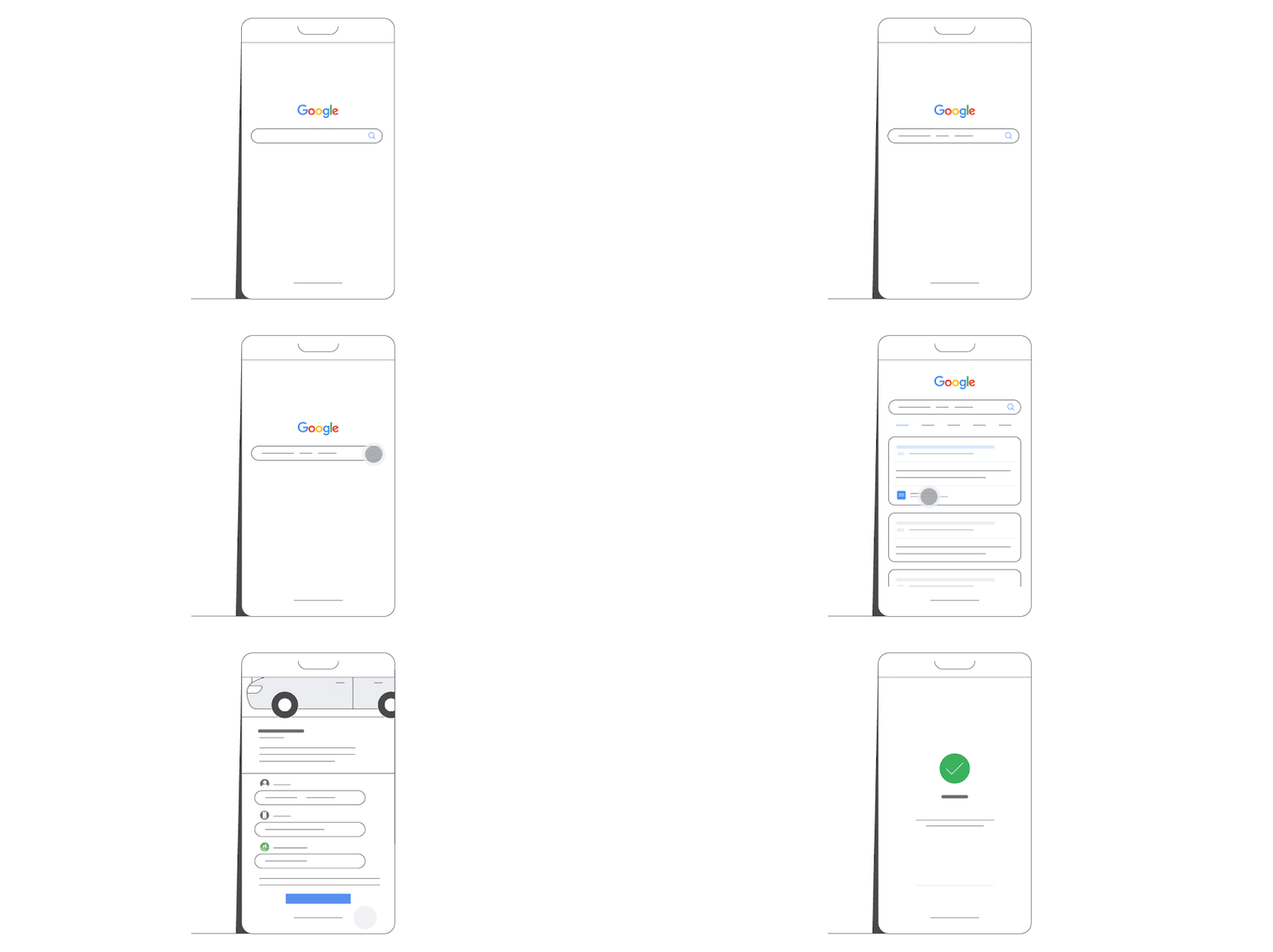
Display campaigns
- Lead forms can appear on both desktop and mobile devices.
- You must have at least one responsive display ad in order to serve lead forms. Lead forms aren't compatible with uploaded image ads.
Lead form assets at the account level
- You can attach a lead form asset at the account level for use with Search or Performance Max campaign types.
- Lead form assets at the campaign level in Google Ads always override any lead form assets at the account level.
- If lead form assets at the campaign level are disapproved, then lead form assets at the account level will serve.
Lead form optimisation
In addition to the audience targeting for your campaign, you can optimise your lead form to get more leads ('More volume') or higher-quality ('More qualified') leads. For both options, audiences won't be added or removed, and the fields in your lead form won't be changed. Bear in mind that optimisation may work differently depending on the campaign type.- 'More volume' is the default lead form type, but you can change the lead form type to 'More qualified'. The option that you choose may affect the cost per lead and the number of leads collected. You can change the lead form type at any time during the campaign.
- The 'More qualified' lead form type may use a lead form design that contains more steps to submit the form. As a result, there may be fewer leads (but with a greater interest in your business, product or service).
- The 'More volume' lead form type uses a lead form design with fewer steps to submit the form. As a result, there may be more leads. However, those leads may include people that aren't as interested in your business, product or service.
Instructions
For subtitles in your language, turn on YouTube captions. Select the settings icon at the bottom of the video player, then select 'Subtitles/CC' and choose your language.
