You can monitor and troubleshoot a live stream using the "Live stream monitor", which provides you with a detailed historical log of all activity that has occurred within the stream.
The live stream monitor is available for DASH, HLS, or live streams that use DAI Pod Serving. You can view detected ad breaks, early ad break notifications, and activity monitoring.
Where a manifest is ingested (DASH and HLS), you can access the ingested manifest, the processed manifest (if it required processing), and an expanded details view.
Jump to: DASH | HLS | DAI Pod Serving | Understand live stream information
Access the live stream monitor
- Sign in to Google Ad Manager.
- Click Video, then Live streams.
- Open the live stream you'd like to monitor or troubleshoot.
- Click Live stream monitor to see the live stream activity, sorted by record time. You can filter the records based on a particular date and time, or range of time.
DASH live streams
For DASH live streams, you can expand 
Records
- Click View MPD to see the manifest.
- Click View notification to see the early ad break notification, if applicable.
Periods
- Click View ad break to see the ad break information.
HLS live streams
For HLS live streams, you can expand
Records
- Click View ad break to see ad break information, if applicable.
- Click View notification to see the early ad break notification, if applicable.
- Click View multivariant playlist to see the HLS multivariant playlist.
Variants
- Click View media playlist to see the playlist for a particular media variant.
- Click View DAI profile to see the DAI profile applied to the stream.
Live streams that use DAI Pod Serving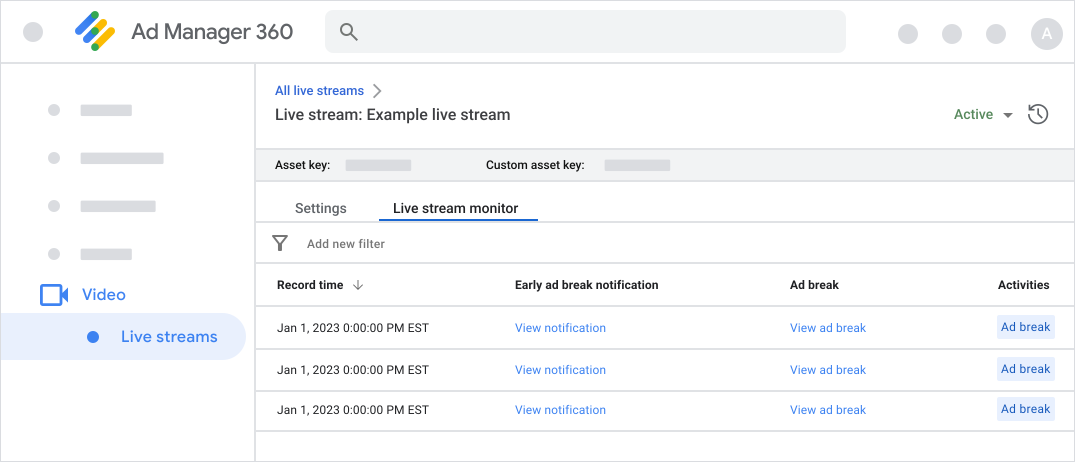
For live streams that use DAI Pod Serving, you can:
- Click View notification to see the early ad break notification, if applicable.
- Click View ad break to see ad break information.
Understand live stream monitor information
Early ad break notifications
Early ad break notifications alert Ad Manager of an upcoming ad break with its metadata before the start of the ad break.
| Learn how to send notifications with the Early Ad Break Notification (EABN) API. |
Manifests (DASH only)
The media presentation description (MPD) available for live streams using the DASH format comes from the content stream URL configured in the live stream settings. There may be multiple ingested manifests if backup streams exist.
You may also see processed manifests, or those that have been manipulated to perform dynamic ad insertion. Processed manifests include streams that have opted into DASH bridge. The processed manifest is omitted from the live stream monitor tool when it would be equivalent to the already ingested manifest.
From this screen, you can click Copy to copy the manifest to the clipboard.
Playlists (HLS only)
The playlists available for live streams using the HLS format comes from the content stream URL configured in the live stream settings. There may be multiple ingested playlists if backup streams exist.
You may also see processed playlists, or those that have been manipulated to perform dynamic ad insertion. The processed playlist is omitted from the live stream monitor tool when it would be equivalent to the already ingested playlist.
From this screen, you can click "Copy" to copy the playlist to the clipboard.
Ad break information
The available ad break information includes:
- Sequence number
- Duration
- Ad break time
- Custom parameters
- SCTE-35 cue out
- Early break notification decision time
- SCTE-35 ad break:
- Splice Insert
- Splice event Id
- Unique program Id
- Out of network indicator
- Auto return enabled
- Time signal
- Segmentation event Id
- Segmentation upid type
- Segmentation upid
- Signal type Id
- Splice Insert
Ad break data correlates to the early ad break notification, where applicable.
Live stream data and activities
Serving states report the overall state of the live stream at the time of evaluation. The serving state of a live stream depends on the severity of the discovered activities. The monitor will assume that the live stream has stopped serving when many error activities are present. Possible serving states are:
- Serving
- Degraded
- Not serving
Activities vary based on implementation type. All of the following apply to DASH live streams:
- Missing attribute:
<dash_attribute_name> - Unsupported value for attribute:
<dash_attribute_name> - Invalid value for attribute:
<dash_attribute_name> - Missing element:
<dash_element> - Prohibited element:
<dash_element>
For DASH and for live streams that use DAI Pod Serving, activities also include "Ad break" and "Failed to fetch".
Each activity is reported with a Severity that shows how it affects the stream's overall serving state. Possible severities are:
- Info
- Warning
- Error
Click View 1 live stream activity to view live stream activities in detail. Note that this link changes to show the amount of stream activities (for example, "View 3 live stream activities").
Troubleshoot "Degraded" and "Failed to fetch" stream states
To prevent or resolve manifest fetch issues, verify the following on your CDN and origin server:
- Allow the Google DAI user agent: All manifest ingestion requests from Ad Manager dynamic ad insertion (DAI) use the Google video ads-stitching user agent. Ensure your firewall, CDN, and origin server do not block or rate-limit requests from
Google-VideoAds-Stitching. - Allow multi-region access: Ad Manager DAI ingests manifests from multiple geographic regions for redundancy and performance. Remove any geographic restrictions (geo-blocking) that prevent
Google-VideoAds-Stitchingfrom accessing your content manifests worldwide. - Verify public DNS resolution and origin responsiveness: Ensure all domain names used for content ingestion are publicly resolvable by DNS servers and respond within standard HTTP timeout thresholds.
- Prevent stale HLS playlists (HTTP 404): Linear HLS live streams require continuous media segment updates. If a variant playlist receives no new segments for 8 to 9 minutes, Ad Manager marks the playlist as stale and returns HTTP 404. Verify that your encoder continuously publishes new segments and that your CDN caching rules do not serve stale playlists.
Troubleshoot HLS variant and profile detection warnings
Indicates a discontinuity in your HLS media playlist between consecutive polls. Verify your encoder configuration to ensure that:
- The
#EXT-X-MEDIA-SEQUENCEnumber increments by exactly +1 with each update. - No more than 1 new transport stream (.ts) segment is added in a single poll interval.
- A new .ts segment is published within every target duration poll.
- Profile detection issue (resource deadline): A non-fatal warning that does not impact ad serving or playback, commonly triggered when a stream uses a long DVR window.
- Profile detection issue (Encryption key HTTP 403): A non-fatal warning logged when an isolated poll fails to fetch the AES-128 encryption key (HTTP 403). Playback is not affected unless encryption key requests fail continuously.
- Profile detection warning (Short raw content segment <2s): A non-fatal warning logged when raw content segments are shorter than 2 seconds. For optimal ad stitching, configure your encoder to output standard segment durations of 2 seconds or longer.