Group any combination of Google Nest or Home speakers and displays, Chromecast devices and Google Pixel Tablets together for synchronous music throughout the home. Your music and audio from Chromecast-enabled apps are instantly available to stream.
Compatible devices include:
- Google Home
- Google Nest Mini (2nd gen)
- Google Home Mini (1st gen)
- Google Home Max
- Google Nest Audio
- Google Nest Hub Max
- Google Nest Hub
- Google Nest Hub (2nd gen)
- Google Nest Wifi point
- Google Pixel Tablet (in Hub Mode only)
- Chromecast with Google TV (HD)
- Chromecast with Google TV (4K)
- Chromecast (2nd and 3rd gen)
- Chromecast Ultra
- Chromecast Audio
- Speakers with Chromecast Built-In and selected TVs
Note: This feature is not supported on Chromecast (1st gen).
Step 1. Create and manage speaker groups
Note: Speaker group creation is only available on a phone or tablet. This feature is not supported on the Chrome Browser. However, you can still cast to a group from Chrome.
Create an audio group- Make sure that your phone or tablet is connected to the same Wi-Fi or linked to the same account as your speaker, display, Chromecast or Pixel Tablet.
- Open the Google Home app
.
- Tap Settings
Add
- Tap each device that you want to add to the group. A tick
will appear next to each selected device.
- Tap Next
 .
.
 will appear next to each selected device.
Note: You can only add a Pixel Tablet to a speaker group when it's attached to the Charging Speaker Dock.
- Make sure that your phone or tablet is connected to the same Wi-Fi or linked to the same account as your speaker, display, Chromecast or Pixel Tablet.
- Open the Google Home app
- Tap Devices
.
- Select the group that you want to edit
- Tap each device that you want to add or remove. All devices in the group will have a tick
- Tap Save.
Important: If you make edits to a group that's currently casting media, group playback will stop and all audio devices in the group will stop playing. You'll need to return to the Cast-enabled app or say a voice command to start casting media again.
Note: You can only add a Pixel Tablet to a speaker group when it's attached to the Charging Speaker Dock.
- Make sure that your phone or tablet is connected to the same Wi-Fi or linked to the same account as your speaker, display, Chromecast or Pixel Tablet.
- Open the Google Home app
- Tap Devices
- Select the group that you want to delete.
- Tap Delete group
Important: If you delete a group that's currently casting media, group playback will stop and all audio devices in the group will stop playing.
Step 2. Control speaker groups
Use a voice command to start playing media on a speaker group. Then, control your media with voice commands, the Google Home app or touch controls on your device.
Note: Your phone or tablet's volume buttons won't adjust the volume of your speaker group.
Using your voice
| To do this: | Say 'Hey Google', then: |
|---|---|
| Play music using group name | 'Play rock music on [group name]' |
| Control music using basic commands | 'Pause' 'Resume' 'Stop' 'Play next song' |
| Control volume of a device in a speaker group | 'Louder' 'Set volume to 40%' |
Note: During group playback, volume commands only change the device that you said the voice command to.
From the Google Home app
- Make sure that your phone or tablet is connected to the same Wi-Fi or linked to the same account as your speaker, display, Chromecast or Pixel Tablet.
- Open the Google Home app
- Tap Favourites
.
- Tap the current media session for:
- Playback controls
- Volume control
- Playback device selection
From the Google device
Note: Each device's touch controls adjust only its own volume, not the speaker group's volume.
Google Home and Nest speakers
Important: Speaker touch controls change the volume of media and Google Assistant only. To change the volume of alarms and timers, use the Google Home app or the Quick Settings menu on a Nest display.
 Google Home
 Google Home
| To do this: | Touch Google Home like this: | Image |
Turn up the volume  |
Swipe clockwise on the top. |  |
| Turn down the volume |
Swipe anticlockwise on the top. Note: When the volume is set to 0:
|
 |
Start your request  |
Press and hold on the top. |  |
 Google Nest Mini (2nd gen)
 Google Nest Mini (2nd gen)
To reverse right and left controls, open the Google Home app 

or Devices


| To do this: | Touch Google Nest Mini like this: | Image |
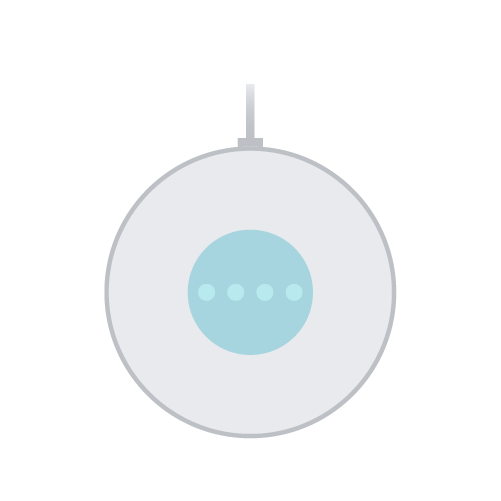
| Pause, resume or stop media |
Tap the centre of the Nest Mini. |
 |
|
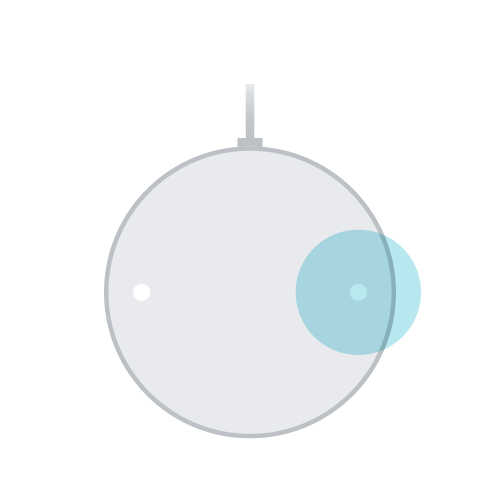
Turn up the volume |
Tap the right side of the Nest Mini. The volume ranges from 0–100%. Each tap changes the volume by 10%. |
 |
|
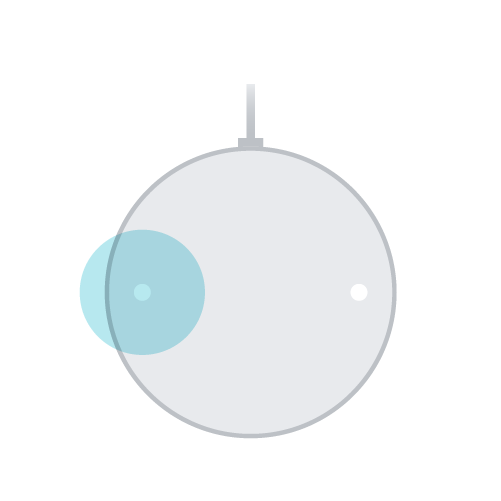
Turn down the volume |
Tap the left side of the Nest Mini. The volume ranges from 0–100%. Each tap changes the volume by 10%. Note: When the volume is set to 0:
|
 |
 Google Home Mini (1st gen)
 Google Home Mini (1st gen)
| To do this: | Touch Google Home Mini like this: | Image |
| Pause, resume or stop media | Press and hold either side of the Home Mini. |  |
|
Turn up the volume |
Tap the right side of the Home Mini. The volume ranges from 0–100%. Each tap changes the volume by 10%. |
 |
|
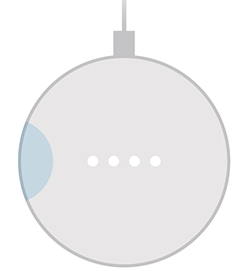
Turn down the volume |
Press and hold the left side of the Home Mini. The volume ranges from 0–100%. Each tap changes the volume by 10%. Note: When the volume is set to 0:
|
 |
 Google Home Max
 Google Home Max
| To do this: | Touch Google Home Max like this: | Image |
|
Pause, resume or stop media |
Horizontal placement: Tap the line on the top. Vertical placement: Tap the line on the right side. |
  |
|
Turn up the volume |
Horizontal placement: Swipe from left to right along the line on the top. Vertical placement: Swipe up along the line on the right side. |
  |
|
Turn down the volume |
Horizontal placement: Swipe from right to left along the line on the top. Vertical placement: Swipe down along the line on the right side. Note: When the volume is set to 0:
|
|
 Google Nest Audio
 Google Nest Audio
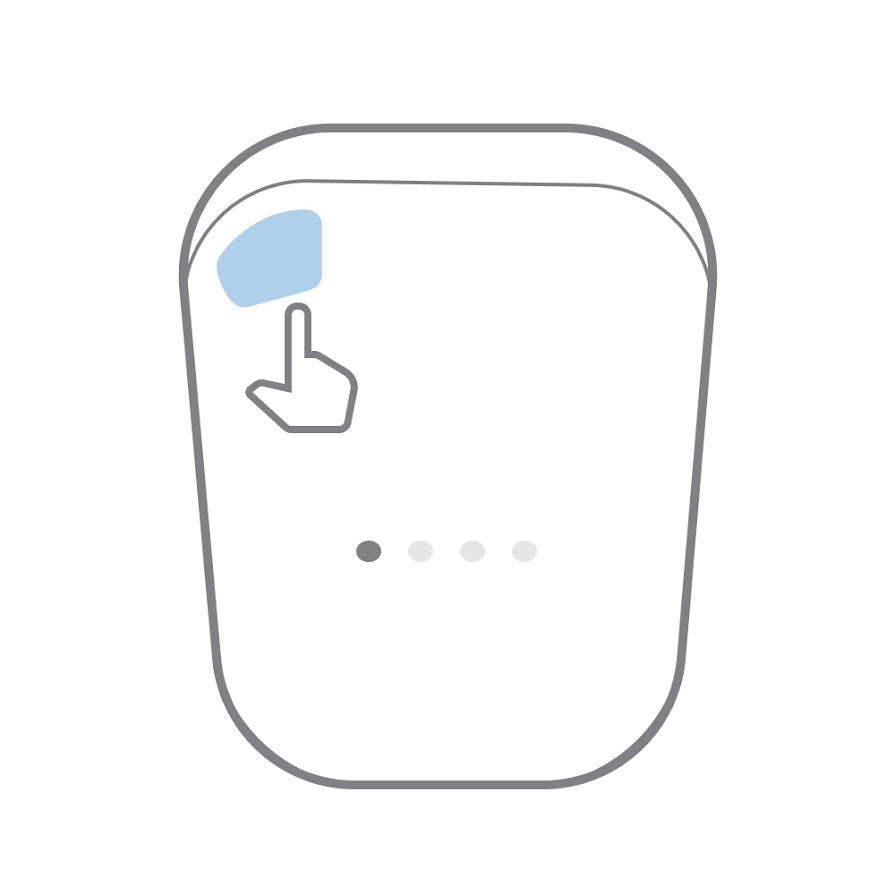
| To do this: | Touch Google Nest Audio like this: | Image |
| Pause, resume or stop media | Tap the centre of the Nest Audio. |  |
|
Turn up the volume |
Tap the right side of the Nest Audio. The volume ranges from 0–100%. Each tap changes the volume by 5%. |
 |
|
Turn down the volume |
Tap the left side of the Nest Audio. The volume ranges from 0–100%. Each tap changes the volume by 5%. Note: When the volume is set to 0:
|
 |
 Google Nest Wifi point
 Google Nest Wifi point
| To do this: | Touch Nest Wifi point like this: | Image |
| Pause, resume or stop media | Tap the centre of the Nest Wifi point. | 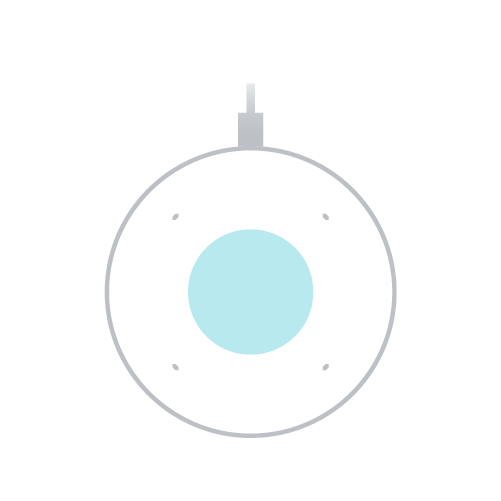 |
|
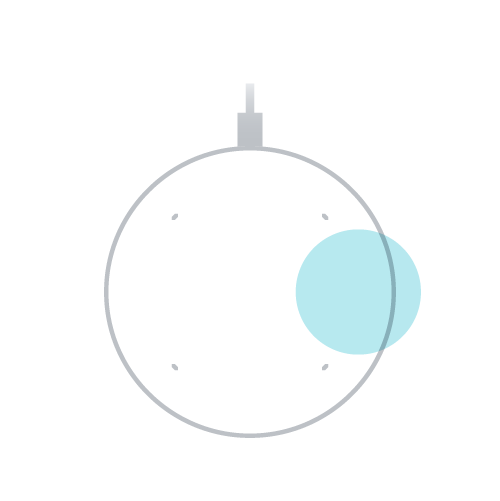
Turn up the volume |
Tap the right side of the Nest Wifi point. The volume ranges from 0–100%. Each tap changes the volume by 10%. |
 |
|
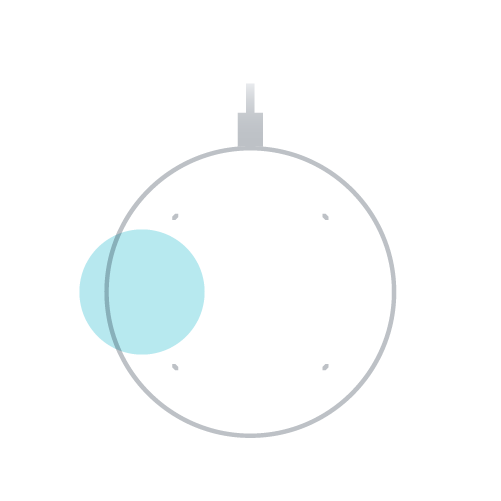
Turn down the volume |
Tap the left side of the Nest Wifi point. The volume ranges from 0–100%. Each tap changes the volume by 10%. Note: When the volume is set to 0:
|
 |
 Google Nest displays
 Google Nest displays
Important: To control the volume of alarms and timers, use the Quick settings menu. The volume button and media card adjust the volume of media and Google Assistant only.
Use the media card to pause, resume, play the previous or next song, or change the devices that are playing media.
Volume button
| To do this: | Touch Nest Hub or Nest Hub Max like this: | Image |
|
Turn up the volume |
On the back of the Nest display, press the upper volume button. The volume ranges from 0–100%. Each press changes the volume by 5%. |
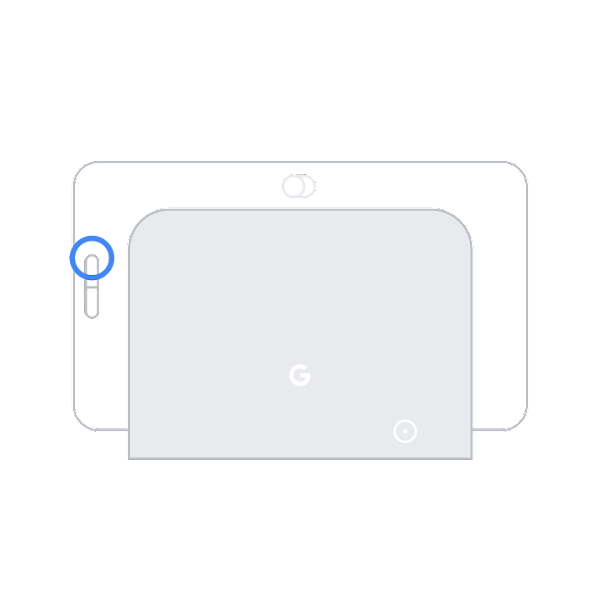 |
|
Turn down the volume |
On the back of the Nest display, press the lower volume button. The volume ranges from 0–100%. Each press changes the volume by 5%. Note: When the volume is set to 0:
|
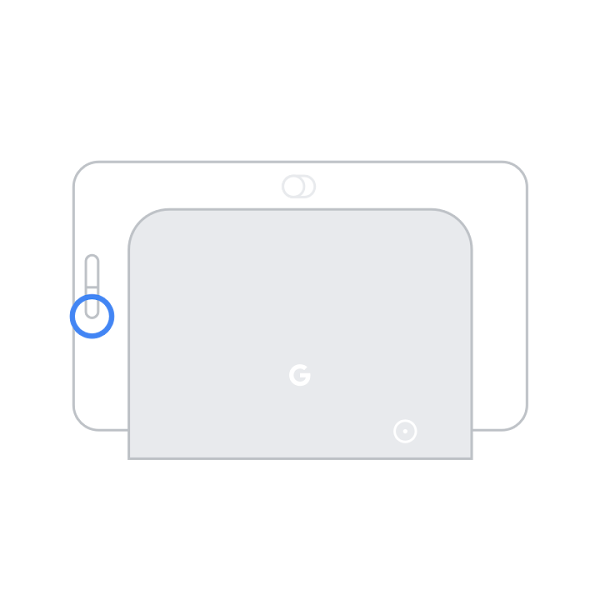 |
- To open the Quick settings menu, swipe up from the bottom of the screen.
- Tap Volume
.
- Use the main volume control slider
- If needed, tap Expand
to open the volume control slider for timers and alarms
- Use the main volume control slider
- To change the volume, swipe the slider left or right.
Media card
- To find the media card, swipe down from the top
tap Media.
- Note: If the screen shows the media that's playing, you can tap the screen instead.
- Use the controls on the card to pause, resume or play the previous or next song.
- To open more controls, tap [display name]
. You’ll get a list of available devices and a volume control slider for each device that’s currently playing.
- To start or stop playing media on a device, tap the radio button next to its name.
- To change the volume on an active device, swipe its slider left or right.
 tap Media.
 . You’ll get a list of available devices and a volume control slider for each device that’s currently playing.
Google Pixel Tablet (Hub Mode)
When you change the volume on your Pixel Tablet while it's docked, the volume on the speaker dock will also change.
Volume button
| To do this: | Touch Google Pixel Tablet like this: |
| Turn up the volume |
Press the side button closest to the power button. |
| Turn down the volume |
Press the side button that's farthest from the power button. |
Media widget
When media is playing in Hub Mode, you can control playback on your lock and home screens by touch. A media widget will automatically appear with buttons to control what's playing
Some media apps have widgets that you can add to your home screen for easy touch control. Place the widget on your home screen, then tap the widget to control the volume, pause playback, skip or change songs or podcasts, change the radio station and more.
Audio delay issues
If there's a delay between one device in the group and the others, use the group delay correction setting for that device to resolve the issue.