|
This article applies to the following Google Nest thermostat models in the US and Canada: |
|
|
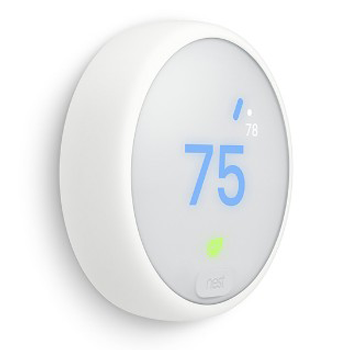
Nest Thermostat E |
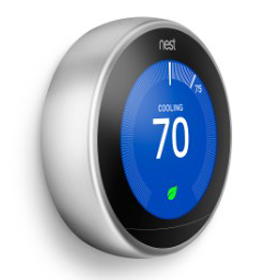
Nest Learning Thermostat |
- Locking your Google Nest thermostat prevents people from changing settings or changing the temperature outside of a restricted range with the thermostat.
- Anyone who shares access to your home with the Home or Nest app will still be able to change the temperature and settings or unlock your thermostat with the app.
- You can lock your thermostat in the Settings menu on your thermostat, or with the Home or Nest app.
- To unlock a thermostat, you need to enter the four digit PIN code on the thermostat, or use the app.
- When a Nest thermostat is locked, it will still heat or cool to any temperatures in your schedule, even if they are outside of the locked temperature range. It will also follow your Eco Temperatures.
How it works
Lock your Nest thermostat while in Heat mode or Cool mode
When you lock your Nest thermostat in Heat mode or Cool mode, you'll set a temperature range after you create a four digit PIN. Anyone can turn the thermostat's ring to change the temperature within the range you've set, but they won't be able to set the temperature outside of your range or change any of your settings.
Note: When you lock your thermostat with the Nest or Home app, the smallest temperature range is 5º F (for example, 70-75º F). There is no minimum temperature range if you set the lock directly from the Nest thermostat. So if you want to set a smaller range or lock the thermostat to a single temperature you'll need to set the lock on the thermostat itself.
Lock your Nest thermostat in Heat•Cool mode
When you set your Nest thermostat to Heat•Cool mode, you can choose a temperature range. Your thermostat will heat or cool to stay within this range. The smallest range you can set on your thermostat is 2º F (for example, 68-70º F).
When you set the lock, you'll create a PIN, and then your thermostat will be locked to the range that you've chosen. Unless you enter the PIN and unlock your thermostat, you won't be able to use your thermostat to adjust the temperature or change any settings.
If you need to change your temperature range or settings, you can use the Nest or Home app or unlock your thermostat
How to lock your Nest thermostat
On your thermostat
|
Follow these steps to lock your Nest thermostat:
|
|
 and press to select.
With the Nest app
- Tap the Nest thermostat you'd like to lock.
- Tap the Settings
icon in the top right corner.
- Scroll to the bottom of the menu and tap Lock.
- Enter a PIN that you can easily remember, and enter it again to confirm.
- If you're locking your thermostat in Heat mode or Cool mode, you'll need to set a temperature range. Drag the slider to set the minimum and maximum temperatures while locked. Tap Lock at the bottom of the screen when you're done.
- To confirm your thermostat is locked, tap Settings
With the Home app
You can lock your thermostat to a single temperature or a temperature range.
- Open the Home app
- Tap Favorites
or Devices
- Tap and hold your device's tile
Settings
, or More
- Tap Lock
enter a 4-digit PIN number
- In the "Temperature adjustment" section:
- To set a single temperature, tap Set temperature
- To set a temperature range, tap Range
- To set a single temperature, tap Set temperature
 Settings
  , or More
 enter a 4-digit PIN number
 How to unlock your Nest thermostat
On your thermostat
Follow these steps to unlock your Nest thermostat using its ring. You'll need the PIN that was set when the thermostat was locked. If you don't have the PIN, you can still use the Nest or Home app to unlock the thermostat.
|
 |
With the Nest app
|
Anyone who has access to your Nest home can use the Note: To unlock your Nest thermostat with the Nest app, Follow these steps to unlock your Nest thermostat
|
 |
With the Home app
- Open the Google Home app
.
- Tap the name of your Nest thermostat
.
- Tap Unlock
 .
. .
.How to change the lock code
To change your thermostat's PIN code, you'll need to use the Home or Nest app.
Nest app
To change your thermostat's PIN, you'll need to use the Nest app on your phone or tablet.
- Open the Nest app.
- Select the Nest thermostat that has the PIN you want to change.
- Select Settings
- Once your Nest thermostat has been unlocked, you can select Lock in the Nest thermostat settings to lock it again and set a new PIN.
Home app
- Open the Google Home app
- Tap the name of your Nest thermostat
- Tap Unlock
- Once your Nest thermostat has been unlocked, you can lock it again and set a new PIN.