Your Google Nest Mini can be hung on a wall using the screw slot on the back of the device. Before you mount it on a wall, make sure you’ve set up your Nest Mini.

Mount Google Nest Mini
To mount Nest Mini, you need the following equipment (not included):
- A #8 Pan Head screw that's flat on the bottom and top, with rounded edges.
- A wall anchor, if needed for your wall type, such as drywall or masonry.
- A screwdriver or power drill with a screwdriver bit.
- Choose a location that’s close to a wall outlet and within your Wi-Fi network’s range. Test the device in that location before you attach it to the wall.
- Plug the Nest Mini device into the wall outlet.
- Hold the device against the wall where you’d like to mount it.
- Say “Hey Google” and ask a question or give it a command to make sure it’s able to connect to the network.
- If you want to use a wall anchor, follow the instructions on the wall anchor package to insert the anchor into the wall. The top of the anchor should be flush with the surface of the wall.
- Use a screwdriver or power drill to tighten the screw into the wall or wall anchor. Be sure to leave a 2 mm (0.079 in) gap between the screw head and the wall.
- Use the screw slot on the back of the Nest Mini device to hang your Nest Mini on the screw. The device should fit snugly against the wall.
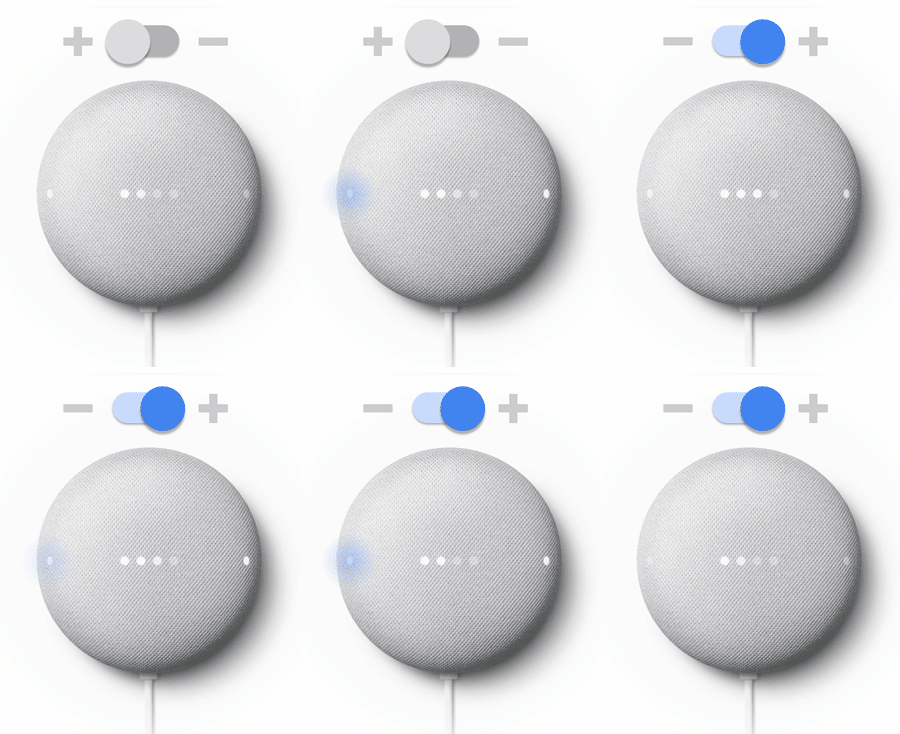
Reverse the device controls
After you’ve mounted the Nest Mini on a wall, you can flip volume controls and lights on your device so that they’re oriented the right way.
- Make sure your mobile device or tablet and your speaker are linked to the same account.
- Open the Google Home app
.
- Tap Home
All devices
, then touch and hold your device's tile.
- Tap Settings
Audio
.
- Turn on Reverse device controls.

 All devices
 Audio
Audio  .
.