Use voice commands to listen to media through Google smart speakers or displays, or a TV or speaker that works with Google Cast. This includes radio stations, news, and audiobooks, as well as podcasts on YouTube Music or Spotify.
You can control access to content with the Set up Parental controls & Digital wellbeing on devices in your home.
If you use Gemini for Home voice assistant
|
To do this: |
Say “Ok Google" or “Hey Google," then: |
|---|---|
|
Listen to the closest radio station by name, call sign, or frequency
|
"Play [radio station name]" |
|
Listen to a radio station in another location |
"Play [radio station name] in [location]" |
|
Listen to the last radio station or channel you played |
"Turn on the radio" |
|
Listen to the last radio station or channel you played on a specific service |
"Play [radio service]" |
|
Play radio on TV or speaker that works with Google Cast. |
"Play [radio station] on my [device name]" |
|
Play a nearby NPR station |
"Play NPR" |
| Use advanced voice commands to play radio station | “Play [station] in [location] at [time]” |
Tips:
- Podcasts, podcast providers, and podcast voice controls availability can vary based on your country, region, or language.
- Each person can link only a single account per streaming service. For example, if you have two Spotify accounts, you can only use one across your devices. Learn how to link your podcast services and set your default.
- You can interact with your voice assistant on your speaker or display while you listen to a podcast. When you activate your voice assistant, the podcast will pause until you finish the interaction.
|
To do this: |
Say "Ok Google" or "Hey Google," then: |
|
Listen to a podcast |
"Listen to [podcast name] on [podcast service]" |
|
Continue to listen to a podcast |
"Continue listening to [podcast name]" |
|
Listen to podcast by latest episode |
"Listen to the latest episode of [podcast name]" |
|
Listen to the next or previous episode |
"Next episode" |
|
Discover new podcasts |
"Recommend a podcast" |
|
Pause |
"Pause" "Pause the podcast" |
|
Resume |
"Resume" "Continue playing" |
|
Stop |
"Stop" "Stop the podcast" |
|
Identify the current podcast |
“What’s playing?” “What podcast is playing?” |
|
Discover a podcast by topic or category |
“What are some [category] podcasts? Hey Google, play the second one.” “I want to learn more about [topic], can you suggest a few podcasts on this topic? Hey Google, play the first one.” |
Step 1: Buy and download audiobooks
- On your Android phone or tablet, open the Google Play Books & Audiobooks App
.
- Tap Shop and then search for an audiobook.
- To learn more about an audiobook, tap the cover image.
- To listen to a sample, tap Play Sample.
- To buy the audiobook, tap the price
Buy.
Download using Wi-Fi only
To avoid data charges, download audiobooks using Wi-Fi only. To turn this feature on or off:
- On your Android phone or tablet, open the Google Play Books & Audiobooks app
.
- Tap your Profile photo or Initial
Play Book settings
Download over Wi-Fi only.
Step 2: Use your voice to control audiobooks
Make sure you're signed in to the same Google Account you used to buy audiobooks from Google Play. Check which Google Account is linked to a speaker or display.
| To do this: | Say "Ok Google" or "Hey Google," then: |
| Continue to play the most recently listened to audiobook | "Read my book" |
| Request an audiobook from your Library | "Read [audiobook title]" |
| Pause | "Pause" |
| Resume |
"Resume" "Continue" |
| Stop | "Stop" |
| Skip ahead | "Skip [amount of time]" |
| Skip back | "Go back [amount of time]" |
| Play previous chapter | "Previous chapter" |
| Play next chapter | "Next chapter" |
| Change the playback speed |
"Play at 2x speed" "Play slower" "Play twice as fast" "Play at half the speed" |
| Control volume |
"Louder" "Lower the volume" "Set volume to 40%" |
| Or, play it all again | "Hey Google, start it from the beginning." |
Listen to audiobooks from other providers
Start an audiobook from any provider on your computer or mobile device and then play it remotely on your speaker or display. Depending on your device and content provider, try one of these options for remote play:
- Play media from Google Cast-enabled apps
- Cast media from Chrome to your Google smart speaker or display
- Play Android audio on Google smart devices
- Play media on your Google smart speaker or display using Bluetooth
To control your audiobook, use the provider's app or webpage. You can also use voice commands to change the volume on your speaker or display.
|
To do this: |
Say "Ok Google" or "Hey Google," then: |
|
Listen to the latest news |
"Play me the news" "Listen to the news" "Play me the morning news" "Listen to the evening news" |
|
Listen to news from specific provider |
"Listen to (the news from) [provider name]" "Play (the news from) [provider name]" |
|
Listen to news about a topic |
"I hear NASA discovered possible evidence of life on Mars." "Play the latest on college football" "Hear headlines about Wall Street" |
|
Listen to the latest news about a specific news category |
"What's the latest in sports" "Play business news" “Play sports news” “Who is the leading candidate for MVP in the NBA” |
|
Change the playback speed |
"Play at 2x speed" "Play slower" "Play twice as fast" "Play at half the speed" “Rewind at 1.5x speed” |
|
Play next news story |
"Next" "Skip" |
|
Rewind |
"Rewind" "Rewind [number] seconds" "Rewind [number] minutes" |
- Make sure your mobile device or tablet is connected to the same Wi-Fi network or linked to the same account as your speaker or display.
- Open the Google Home app
.
- At the top right, tap your Profile picture or Initial.
-
Verify that the Google Account shown is the one linked to your Google device.
- To switch accounts, tap the drop down
another account or Add another account.
- To switch accounts, tap the drop down
- Tap Home settings
Gemini for Home voice assistant
Media
News.
- Add, remove, or reorder news sources.
If you use Google Assistant
|
To do this: |
Say “Ok Google" or “Hey Google," then: |
|---|---|
|
Listen to the closest radio station by name, call-sign, or frequency Important: Premium online radio streaming requires a subscription and is available only in the US and Canada only. |
"Play [radio station name]" "Play [radio station call-sign]" "Play [radio station frequency]" "Play [radio station] on [radio service]" |
|
Listen to a radio station in another location |
"Play [radio station name] in [location]" "Play [radio station frequency] [location]" |
|
Listen to the last radio station or channel you played |
"Turn on the radio" "Play the radio" |
|
Listen to the last radio station or channel you played on a specific service |
"Play [radio service]" |
|
Play radio on TV or speaker that works with Google Cast. |
"Play [radio station] on my [device name]" |
|
Play a nearby NPR station |
"Play NPR" |
Tips:
- Podcasts, podcast providers, and podcast voice controls availability can vary based on your country, region, or language.
- Each person can link only a single account per streaming service. For example, if you have two Spotify accounts, you can only use one across your devices. Learn how to link your podcast services and set your default.
- You can interact with your voice assistant on your speaker or display while you listen to a podcast. When you activate your voice assistant, the podcast will pause until you finish the interaction.
|
To do this: |
Say "Ok Google" or "Hey Google," then: |
|---|---|
|
Listen to a podcast |
"Listen to [podcast name] on [podcast service]" "Play [podcast name] on [podcast service]" |
|
Continue to listen to a podcast |
"Continue listening to [podcast name]" "Play my podcast" |
|
Listen to podcast by latest episode |
"Listen to the latest episode of [podcast name]" |
|
Listen to the next or previous episode |
"Next episode" "Previous" "Skip" |
| Discover new podcasts |
"Recommend a podcast" "Play a comedy podcast" "Find podcasts about investments" |
| Pause |
"Pause" "Pause the podcast" |
| Resume |
"Resume" "Continue playing" |
| Stop |
"Stop" "Stop the podcast" |
| Identify the current podcast |
"What's playing?" "What podcast is playing?" |
Step 1: Buy and download audiobooks
- On your Android phone or tablet, open the Google Play Books & Audiobooks App
.
- Tap Shop and then search for an audiobook.
- To learn more about an audiobook, tap the cover image.
- To listen to a sample, tap Play Sample.
- To buy the audiobook, tap the price
Buy.
Download using Wi-Fi only
To avoid data charges, download audiobooks using Wi-Fi only. To turn this feature on or off:
- On your Android phone or tablet, open the Google Play Books & Audiobooks app
.
- Tap your Profile photo or Initial
Play Book settings
Download over Wi-Fi only.
Step 2: Use your voice to control audiobooks
Make sure you're signed in to the same Google Account you used to buy audiobooks from Google Play. Check which Google Account is linked to a speaker or display.
|
To do this: |
Say "Ok Google" or "Hey Google," then: |
|
Continue to play most recently listened to audiobook |
"Read my book” |
|
Request an audiobook from your Library |
"Read [audiobook title]" |
|
Pause |
"Pause" |
|
Resume |
"Resume" "Continue" |
|
Stop |
"Stop" |
|
Skip ahead |
"Skip [amount of time]" |
|
Skip back |
"Go back [amount of time]" |
|
Play previous chapter |
"Previous chapter" |
|
Play next chapter |
"Next chapter" |
|
Change the playback speed |
"Play at 2x speed" "Play slower" "Play twice as fast" "Play at half the speed" |
|
"Louder" "Set volume to 40%" |
|
|
Play audiobooks on devices linked with Chromecast or Google TV Streamer |
"Read my book on living room TV" "Read [audiobook title] on Chromecast” “Read [audiobook title] in the living room” |
Listen to audiobooks from other providers
Start an audiobook from any provider on your computer or mobile device and then play it remotely on your speaker or display. Depending on your device and content provider, try one of these options for remote play:
- Play media from Google Cast-enabled apps
- Cast media from Chrome to your Google smart speaker or display
- Play Android audio on Google smart devices
- Play media on your Google smart speaker or display using Bluetooth
To control your audiobook, use the provider's app or webpage. You can also use voice commands to change the volume on your speaker or display.
| To do this: | Say "Ok Google" or "Hey Google," then: |
| Listen to the latest news |
"Play me the news" "Listen to the news" |
| Listen to news from specific provider |
"Listen to (the news from) [provider name]" "Play (the news from) [provider name]" |
| Listen to news about a topic |
"Listen to news about NASA" "Play the latest on college football" "Hear headlines about Wall Street" |
| Listen to the latest news about a specific news category |
"What's the latest in sports?" "Play business news" |
| Change the playback speed |
"Play at 2x speed" "Play slower" "Play twice as fast" "Play at half the speed" |
| Play next news story |
"Next" "Skip" |
| Rewind |
"Rewind" "Rewind [number] seconds" "Rewind [number] minutes" |
- Make sure your mobile device or tablet is connected to the same Wi-Fi network or linked to the same account as your speaker or display.
- Open the Google Home app
- At the top right, tap your Profile picture or Initial.
-
Verify that the Google Account shown is the one linked to your Google device.
- To switch accounts, tap the drop down
another account or Add another account.
- To switch accounts, tap the drop down
- Tap Home settings
Google assistant
Media
News.
- Add, remove, or reorder news sources.
Control media from your speakers
Important: Speaker touch controls change the volume of media and your voice assistant only. To change the volume of alarms and timers, use the Google Home app or the Quick settings menu on a smart display.
| Action | Image |
|
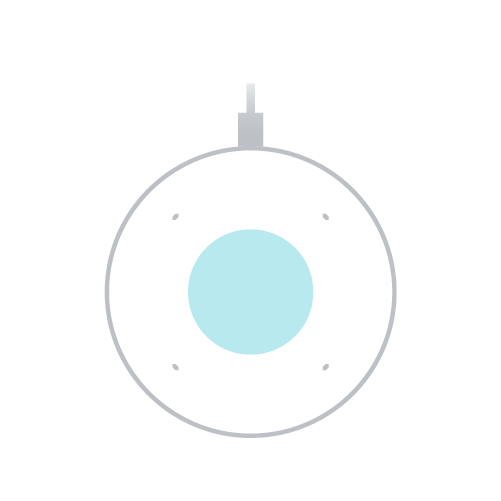
Pause, resume, or stop media Tap the center of the Nest Audio. |
|
|
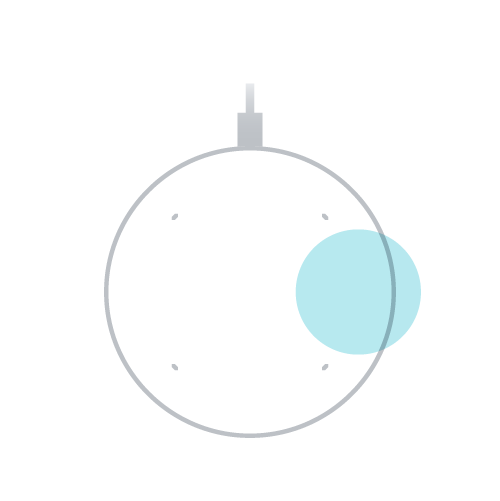
Turn up the volume Tap the right side of the Nest Audio. The volume ranges from 0-100%. Each tap changes the volume by 5%. |
|
|
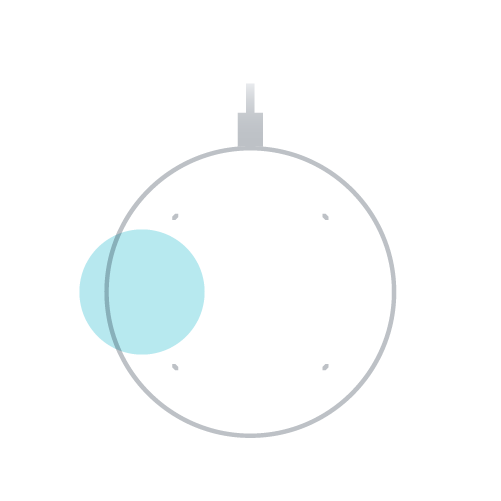
Turn down the volume Tap the left side of the Nest Audio. The volume ranges from 0-100%. Each tap changes the volume by 5%. When the volume is set to 0:
|
| Action | Image |
|
Pause, resume, or stop media Tap the center of the Nest Wifi point. |
|
|
Turn up the volume Tap the right side of the Nest Wifi point. The volume ranges from 0-100%. Each tap changes the volume by 10%. |
|
|
Turn down the volume Tap the left side of the Nest Wifi point. The volume ranges from 0-100%. Each tap changes the volume by 10%. When the volume is set to 0:
|
To reverse right and left controls:
- Open the Google Home app
.
- Tap Home
All devices
, then touch and hold your Nest Mini's tile.
- Tap Settings
Audio
Reverse device controls.
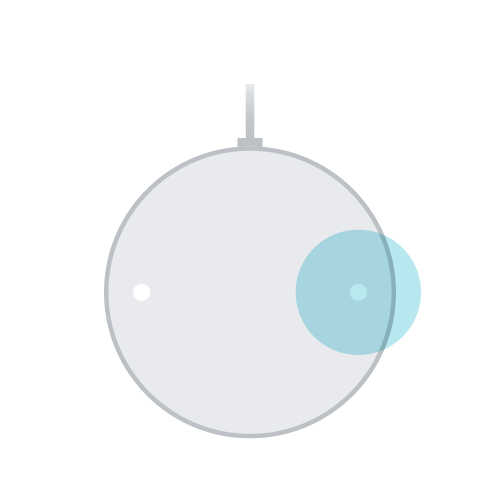
| Action | Image |
|
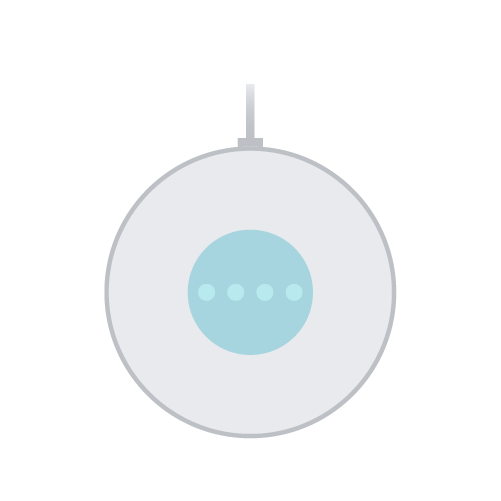
Pause, resume, or stop media Tap the center of the Nest Mini. |
|
|
Turn up the volume Tap the right side of the Nest Mini. The volume ranges from 0-100%. Each tap changes the volume by 10%. |
|
|
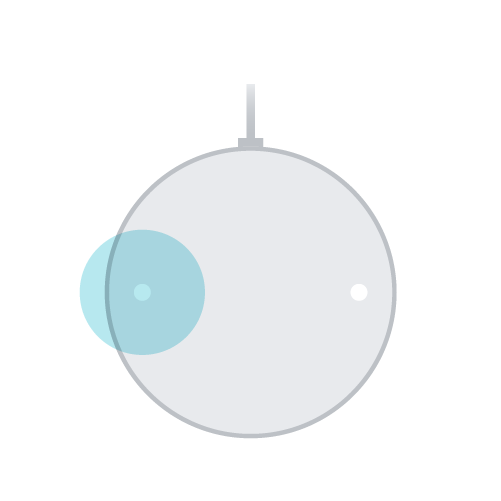
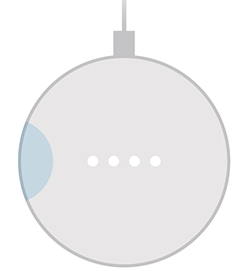
Turn down the volume Tap the left side of the Nest Mini. The volume ranges from 0-100%. Each tap changes the volume by 10%. When the volume is set to 0:
|
| Action | Image |
|
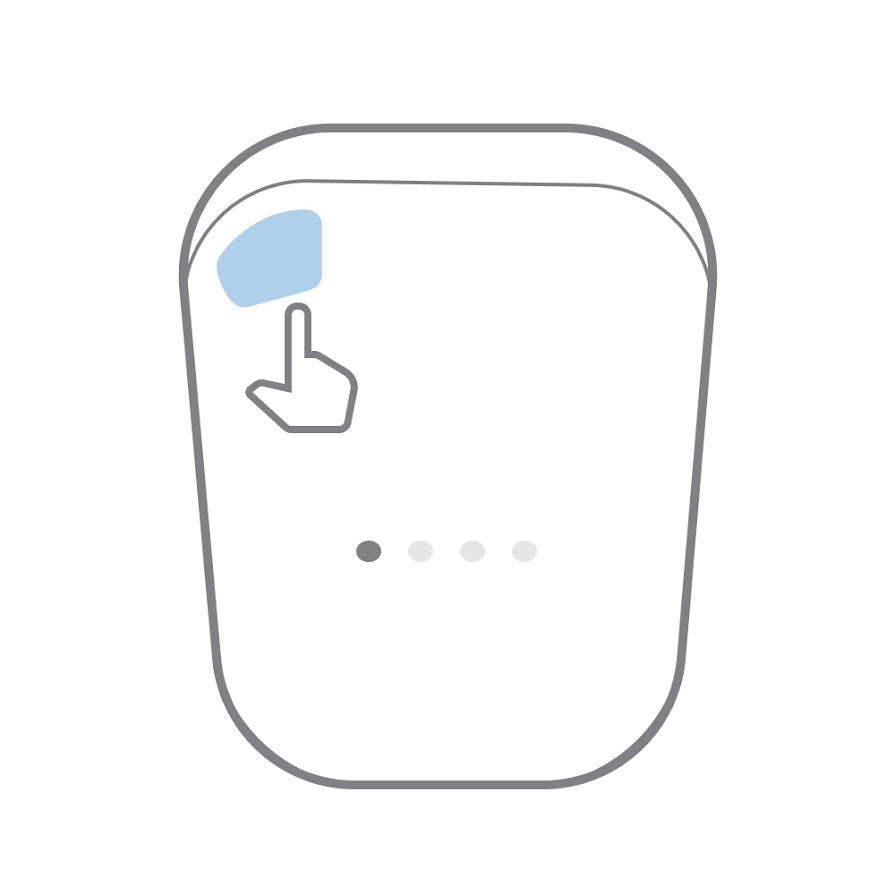
Pause, resume, or stop media Horizontal placement: Tap the line on the top. Vertical placement: Tap the line on the right side. |
|
|
Turn up the volume Horizontal placement: Swipe from left to right along the line on the top. Vertical placement: Swipe up along the line on the right side. |
|
|
Turn down the volume Horizontal placement: Swipe from right to left along the line on the top. Vertical placement: Swipe down along the line on the right side. When the volume is set to 0:
|
| Action | Image |
|
Pause, resume, or stop media Press and hold either side of the Home Mini. |
|
|
Turn up the volume Tap the right side of the Home Mini. The volume ranges from 0-100%. Each tap changes the volume by 10%. |
|
|
Turn down the volume Press and hold the left side of the Home Mini. The volume ranges from 0-100%. Each tap changes the volume by 10%. When the volume is set to 0:
|
| Action | Image |
|
Turn up the volume Swipe clockwise on the top. |
|
|
Turn down the volume Swipe counterclockwise on the top. When the volume is set to 0:
|
|
|
Start your request Press and hold on the top. |
Control media from your displays
Important: The volume button and media card adjust the volume of media and your voice assistant only. To control the volume of alarms and timers, use the Quick settings menu.
Use the media card to pause, resume, play the previous or next song, or change the devices that are playing media.
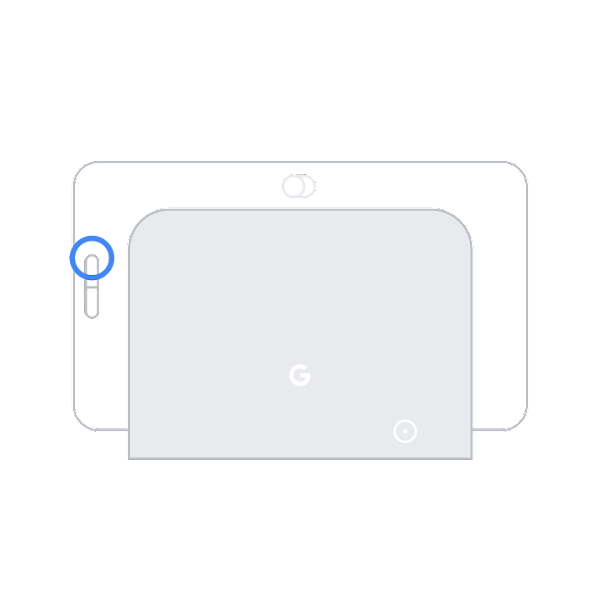
| Action | Image |
|
Turn up the volume On the back of the Nest display, press the upper volume button. The volume ranges from 0-100%. Each press changes the volume by 5%. |
|
|
Turn down the volume On the back of the Nest display, press the lower volume button. The volume ranges from 0-100%. Each press changes the volume by 5%. When the volume is set to 0:
|
- To open the Quick settings menu, swipe up from the bottom of the screen.
- Tap Volume
.
- Use the main volume control slider
for media and your voice assistant.
- If needed, tap Expand
to open the volume control slider for Timers and alarms
.
- Use the main volume control slider
- To change the volume, swipe the slider left or right.
- To find the media card, swipe down from the top, then tap Media.
- If the screen shows the media that's playing, tap the screen instead.
- Use the controls on the card to pause, resume, or play the previous or next song.
- To open more controls, tap [display name]
. You’ll get a list of available devices and a volume control slider for each device that’s currently playing.
- To start or stop playing media on a device, tap the radio button next to its name.
- To change the volume on an active device, swipe its slider left or right.
Control media from your Pixel Tablet
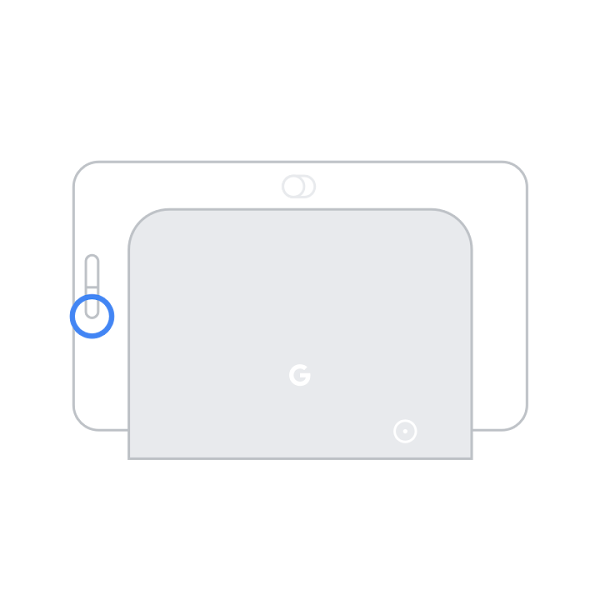
When you change the volume on your Pixel Tablet while it's docked, the volume on the speaker dock will also change.
| To do this: | Touch Google Pixel Tablet like this: |
| Turn up the volume |
Press the side button closest to the power button. |
| Turn down the volume |
Press the side button that's farthest from the power button. |
When media is playing in Hub Mode, you can control playback on your lock and Home screens by touch. A media widget will automatically appear with buttons to control what's playing.
For easy touch control, some media apps have widgets you can add to your Home screen. When the widget on your Home screen, you can control the volume, pause playback, skip or change songs, podcasts, radio station, and more.
Control media from the Google Home app
- Make sure your mobile device or tablet is linked to the same account as your speaker or display.
- Open the Google Home app
.
- Tap Home
Favorites
.
- Tap the current media session for:
- Playback controls
- Volume control (media and voice assistant)
- Playback device selection
Troubleshoot media playback issues
- Ask for the station in a different way. For example, if the name didn't work, try the call sign or frequency.
- Add more specific information, such as "on [radio service]," to your request.
- Add the name of a nearby city when you use the frequency.
- Add more specific information, like the title or streaming service, to your request.
- Check if Filters are blocking podcasts.
- Check if Downtime is turned on in Digital Wellbeing settings. Refer to Set up Parental controls & Digital wellbeing on devices in your home.
- Review your customized news sources.
- Be more specific with your request.
- Check your Digital Wellbeing settings. Refer to Set up Parental controls & Digital wellbeing on devices in your home.