If you’ve started the sign up process for Nest Renew but got stuck or have a problem, here’s how to fix possible issues.
Minimum requirements to enroll in Nest Renew
Check that you have a compatible thermostat installed
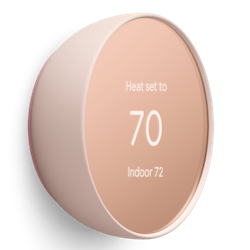
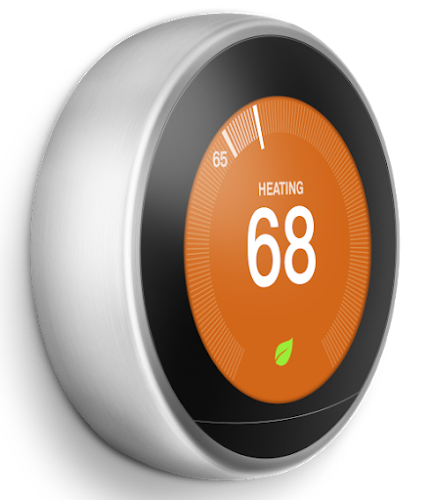
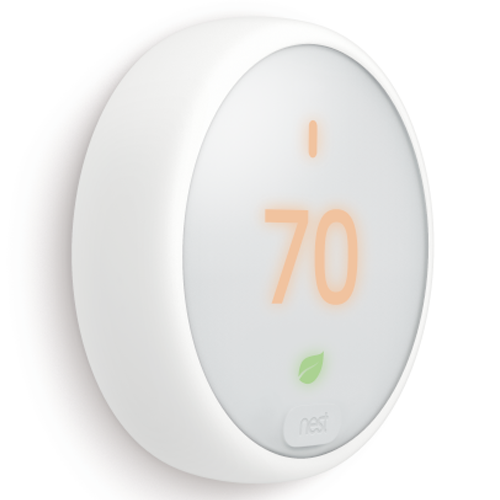
You need one of the following thermostat models already installed to be eligible for Nest Renew.
 |
 |
 |
| Nest Thermostat |
Nest Learning Thermostat (3rd gen) |
Nest Thermostat E |
How to tell which Nest thermostat you have
Note: If you have a new Nest thermostat, use the instructions included in the box or in the app to to set up and install your thermostat.
Confirm that you have migrated your Nest account
Nest Renew requires a migrated Google account. Find out how.
Confirm that you live in an eligible zip code in the continental United States
Nest Renew is available in select locations.
Get help connecting to your Google Account
You’ll need to sign in with your migrated Google Account to complete Nest Renew enrollment on the web.
Can’t sign into Google Account
If you’re having trouble signing into your Google Account during Nest Renew enrollment, check that you can sign into your account in another web browser tab on your computer, or with your phone.
If you’re having trouble signing in from there, you can troubleshoot sign-in issues in the Google Account Help Center.
Missing home in the app
If you’re enrolling in Nest Renew and the Google Account you’re using is not linked to an existing home in the Home app, you will need to create a new home in the app.
If you have more than one Google Account, make sure that you’re using the same account you used to sign up for Nest Renew.
Multiple homes or incorrect home in the app
If you have more than one home in the app, confirm which one you want to use with Nest Renew, and make sure that it is associated with the right Google Account.
- Open the Home app
.
- Confirm that the home name and devices listed are correct. If you have more than one home, switch to the home you want to enroll.
- If the home that you want isn’t listed, you might not be signed into the right account. Tap the profile icon in the top right corner, then Expand account list to switch accounts or tap Add another account to sign into another account.
- Once you’ve confirmed the home you want, make sure you have a compatible thermostat paired, and use the account linked to that home to complete Nest Renew signup.
 .
.