If your TV screen is showing a 'Reconnect me' error message, you may be encountering one of the errors below. Match the error message on your screen to the error message listed below to help fix your issue.
Choose your error
Error 1. Reconnect me: Chromecast XYZ can't find the 'NAME' Wi-Fi network

Troubleshooting steps
Step 1. Check the Internet access
- Is your Wi-Fi network available and are other devices (phone, tablet, desktop or laptop) able to connect to it and access the Internet?
- If other devices are able to connect to the Wi-Fi network, and Chromecast is not working, continue to Step 2 directly.
- If no other devices are able to connect to the Wi-Fi network or access the Internet, reboot your router.
- To reboot, unplug the Wi-Fi router. Leave it unplugged for two minutes before you plug it back in.
- Ensure that the router's lights turn off completely when unplugged. Some routers have backup battery packs. You may need to disconnect the battery packs as well, in order to ensure that the router is completely turned off.
- Once all the router lights are back on, and the network name is listed in the Wi-Fi options on your phone or computer, check if the Chromecast is now connected to the Wi-Fi network.
- After the reboot, look at the following scenarios:
- If the network is online and the issue gets fixed after you reboot the router, then skip the rest of the steps
- If the network is online but the issue is not resolved, then continue to Step 2 for more troubleshooting
- If you successfully rebooted the router and the Wi-Fi network is still not available for all the devices, then there could be something wrong with the Internet service. It is recommended that you contact your Internet Service Provider (ISP) to check if any of your network settings were recently changed.
Step 2. Have there been any changes to the router, router location or router password?
If no, continue to next step.
If yes,
- If the device appears as 'Needs setup' in the list of devices in the Home app, follow the steps to set up your device.
- If the device is listed under devices in the Home app, follow the steps to change the Wi-Fi network of Chromecast.
Step 3. Is the Chromecast device within 4.5–6 metres of the setup device and the Wi-Fi router?
The Chromecast device should be as close as possible (within 5 metres) to the device used for setup (phone, tablet or laptop computer), and equally close to the Wi-Fi router. Close proximity allows for the best Wi-Fi connection possible.
If the devices aren't in close proximity, move them closer together.
If moving closer did not resolve the issue, continue to the next step and reboot the Chromecast device.
Step 4. Reboot the Chromecast device
- Unplug the power cable from the Chromecast device.
- Leave it unplugged for one minute.
- Plug the power cable back in.
If that did not resolve the issue, continue to the next troubleshooting step.
If that resolves the issues, then skip the rest of the steps.
Step 5. If you have a 1st generation device, use the HDMI extender
- Unplug the Chromecast device from the HDMI port.
- Unplug the power cable from the Chromecast device.
- Plug the HDMI extender into the Chromecast device.
- Plug the HDMI extender into an available HDMI port on the TV.
- Reconnect the power cable to the Chromecast device.
If that did not resolve the issue, continue to the next troubleshooting step.
If that resolves the issues, then skip the rest of the steps.
Step 6. Perform a factory reset
 Google TV Streamer (4K)
With the Google TV Streamer Voice Remote
- At the top right of your TV screen, select your profile
All settings
.
- Select System
 All settings
 .
From the Google TV Streamer device
- While your device is plugged into the TV and powered on, press and hold the button on the back of the device. The LED should start to blink yellow
.
- Release the button when the LED light turns solid white, and the device should then reset.
- Check your power connection if you have an unresponsive device. If you're performing a reset to transfer ownership, ensure that you've removed the device from your Google Home app first.
 .
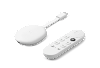

 Chromecast with Google TV
With the Chromecast Voice Remote
- At the top right of your TV screen, select your profile
- Select System
From the Chromecast device
- While your device is plugged into the TV and powered, press and hold the button on the back of the Chromecast. The LED should start to blink yellow.
- Release the button when the LED light turns solid white, and your Chromecast should then reset.
 Chromecast (2nd gen), Chromecast (3rd gen), or Chromecast Ultra
From the Google Home app
Important: You can only do this if you're on the same network you used to set up your Chromecast.
- Open the Google Home app
.
- Tap Home
All
, then touch and hold your device's tile.
- At the top right, tap Settings
 .

 , then touch and hold your device's tile.


From the Chromecast device
- While your device is plugged into the TV and powered on, press and hold the button on the side of the Chromecast.
- The LED should begin to blink orange. Release the button when the LED light turns solid white, and your Chromecast should then restart.
From the Google Home app
Important: You can only do this if you're on the same network you used to set up your Chromecast.
- Open the Google Home app
- Tap Home
- At the top right, tap Settings
From the Chromecast device
Important: You’ll no longer get support for your Chromecast (1st gen), including software or security updates and technical support from Google. You may notice a decrease in performance.
- While your device is plugged into the TV and powered on, press and hold the button on the Chromecast for either:
- At least 25 seconds.
- Or until the solid LED light flashes.
- Release the button when the LED light blinks white and the TV goes blank, and your device should then restart.
 Chromecast Audio
From the Google Home app
- Open the Google Home app
- Tap Home
- At the top right, tap Settings
From the Chromecast Audio device
While your Chromecast Audio is plugged in, hold down the button on the side of the device. The LED will begin blinking orange. Release the button when the LED light turns solid white, and your Chromecast Audio will begin the reboot sequence.
After you perform the factory reset, you'll need to set up your device again.
Error 2. Reconnect me: Chromecast XYZ can't connect to 'NAME' Wi-Fi network

Troubleshooting steps
Step 1. Check the Internet access
- Is your Wi-Fi network available and are other devices (phone, tablet, desktop or laptop) able to connect to it and access the Internet?
- If other devices are able to connect to the Wi-Fi network, and Chromecast is not working, continue to Step 2 directly.
- If no other devices are able to connect to the Wi-Fi network or access the Internet, reboot your router.
- To reboot, unplug the Wi-Fi router. Leave it unplugged for two minutes before you plug it back in.
- Ensure that the router's lights turn off completely when unplugged. Some routers have backup battery packs. You may need to disconnect the battery packs as well, in order to ensure that the router is completely turned off.
- Once all the router lights are back on, and the network name is listed in the Wi-Fi options on your phone or computer, check if the Chromecast is now connected to the Wi-Fi network.
- After the reboot, look at the following scenarios:
- If the network is online and the issue gets fixed after you reboot the router, skip the rest of the steps.
- If the network is online but the issue is not resolved, then continue to Step 2 for more troubleshooting.
- If you successfully rebooted the router and the Wi-Fi network is still not available for all the devices, then there could be something wrong with the Internet service. It is recommended that you contact your Internet Service Provider (ISP) to check if any of your network settings were recently changed.
Step 2. Have there been any changes to the router, router location or router password?
If no, continue to next step.
If yes,
- If the device appears as 'Needs setup' in the list of devices in the Home app, follow the steps to set up your device.
- If the device is listed under devices in the Home app, follow the steps to change the Wi-Fi network of Chromecast.
Step 3. Is the Chromecast device within 4.5–6 metres of the setup device and the Wi-Fi router?
The Chromecast device should be as close as possible (within 5 metres) to the device used for setup (phone, tablet or laptop computer), and equally close to the Wi-Fi router. Close proximity allows for the best Wi-Fi connection possible.
If the devices aren't in close proximity, move them closer together.
If moving closer did not resolve the issue, continue to the next step and reboot the Chromecast device.
Step 4. Reboot the Chromecast device
- Unplug the power cable from the Chromecast device.
- Leave it unplugged for one minute.
- Plug the power cable back in.
If that did not resolve the issue, continue to the next troubleshooting step.
If that resolves the issues, then skip the rest of the steps.
Step 5. If you have a 1st generation device, use the HDMI extender
- Unplug the Chromecast device from the HDMI port.
- Unplug the power cable from the Chromecast device.
- Plug the HDMI extender into the Chromecast device.
- Plug the HDMI extender into an available HDMI port on the TV.
- Reconnect the power cable to the Chromecast device.
If that did not resolve the issue, continue to the next troubleshooting step.
If that resolves the issues, then skip the rest of the steps.
Step 6. Perform a factory reset
Google TV Streamer (4K)
With the Google TV Streamer Voice Remote
- At the top right of your TV screen, select your profile
- Select System
From the Google TV Streamer device
- While your device is plugged into the TV and powered on, press and hold the button on the back of the device. The LED should start to blink yellow
- Release the button when the LED light turns solid white, and the device should then reset.
- Check your power connection if you have an unresponsive device. If you're performing a reset to transfer ownership, ensure that you've removed the device from your Google Home app first.
Chromecast with Google TV
With the Chromecast Voice Remote
- At the top right of your TV screen, select your profile
- Select System
From the Chromecast device
- While your device is plugged into the TV and powered, press and hold the button on the back of the Chromecast. The LED should start to blink yellow.
- Release the button when the LED light turns solid white, and your Chromecast should then reset.
Chromecast (2nd gen), Chromecast (3rd gen), or Chromecast Ultra
From the Google Home app
Important: You can only do this if you're on the same network you used to set up your Chromecast.
- Open the Google Home app
- Tap Home
- At the top right, tap Settings
From the Chromecast device
- While your device is plugged into the TV and powered on, press and hold the button on the side of the Chromecast.
- The LED should begin to blink orange. Release the button when the LED light turns solid white, and your Chromecast should then restart.
From the Google Home app
Important: You can only do this if you're on the same network you used to set up your Chromecast.
- Open the Google Home app
- Tap Home
- At the top right, tap Settings
From the Chromecast device
Important: You’ll no longer get support for your Chromecast (1st gen), including software or security updates and technical support from Google. You may notice a decrease in performance.
- While your device is plugged into the TV and powered on, press and hold the button on the Chromecast for either:
- At least 25 seconds.
- Or until the solid LED light flashes.
- Release the button when the LED light blinks white and the TV goes blank, and your device should then restart.
Chromecast Audio
From the Google Home app
- Open the Google Home app
- Tap Home
- At the top right, tap Settings
From the Chromecast Audio device
While your Chromecast Audio is plugged in, hold down the button on the side of the device. The LED will begin blinking orange. Release the button when the LED light turns solid white, and your Chromecast Audio will begin the reboot sequence.
After you perform the factory reset, you'll need to set up your device again.
Error 3. Reconnect me: Trouble connecting to 'NAME' network due to router error

Troubleshooting steps
Step 1. Check the Internet access
- Is your Wi-Fi network available and are other devices (phone, tablet, desktop or laptop) able to connect to it and access the Internet?
- If other devices are able to connect to the Wi-Fi network and Chromecast is not working, continue to Step 2 directly.
- If no other devices are able to connect to the Wi-Fi network or access the Internet, reboot your router.
- To reboot, unplug the Wi-Fi router. Leave it unplugged for two minutes before you plug it back in.
- Ensure that the router's lights turn off completely when unplugged. Some routers have backup battery packs. You may need to disconnect the battery packs as well, in order to ensure that the router is completely turned off.
- Once all the router lights are back on, and the network name is listed in the Wi-Fi options on your phone or computer, check if the Chromecast is now connected to the Wi-Fi network.
- After the reboot, look at the following scenarios:
- If the network is online and the issue gets fixed after you reboot the router, skip the rest of the steps.
- If the network is online but the issue is not resolved, then continue to Step 2 for more troubleshooting.
- If you successfully rebooted the router and the Wi-Fi network is still not available for all the devices, then there could be something wrong with the Internet service. It is recommended that you contact your Internet Service Provider (ISP) to check if any of your network settings were recently changed.
Step 2. Have there been any changes to the router, router location or router password?
If no, continue to next step.
If yes,
- If the device appears as 'Needs setup' in the list of devices in the Home app, follow the steps to set up your device.
- If the device is listed under devices in the Home app, follow the steps to change the Wi-Fi network of Chromecast.
Step 3. Is the Chromecast device within 4.5–6 metres of the setup device and the Wi-Fi router?
The Chromecast device should be as close as possible (within 5 metres) to the device used for setup (phone, tablet or laptop computer), and equally close to the Wi-Fi router. Close proximity allows for the best Wi-Fi connection possible.
If the devices aren't in close proximity, move them closer together.
If moving closer did not resolve the issue, continue to the next step and reboot the Chromecast device.
Step 4. Reboot the Chromecast device
- Unplug the power cable from the Chromecast device.
- Leave it unplugged for one minute.
- Plug the power cable back in.
If that did not resolve the issue, continue to the next troubleshooting step.
If that resolves the issues, then skip the rest of the steps.
Step 5. If you have a 1st generation device, use the HDMI extender
- Unplug the Chromecast device from the HDMI port.
- Unplug the power cable from the Chromecast device.
- Plug the HDMI extender into the Chromecast device.
- Plug the HDMI extender into an available HDMI port on the TV.
- Reconnect the power cable to the Chromecast device.
If that did not resolve the issue, continue to the next troubleshooting step.
If that resolves the issues, then skip the rest of the steps.
Step 6. Perform a factory reset
Google TV Streamer (4K)
With the Google TV Streamer Voice Remote
- At the top right of your TV screen, select your profile
- Select System
From the Google TV Streamer device
- While your device is plugged into the TV and powered on, press and hold the button on the back of the device. The LED should start to blink yellow
- Release the button when the LED light turns solid white, and the device should then reset.
- Check your power connection if you have an unresponsive device. If you're performing a reset to transfer ownership, ensure that you've removed the device from your Google Home app first.
Chromecast with Google TV
With the Chromecast Voice Remote
- At the top right of your TV screen, select your profile
- Select System
From the Chromecast device
- While your device is plugged into the TV and powered, press and hold the button on the back of the Chromecast. The LED should start to blink yellow.
- Release the button when the LED light turns solid white, and your Chromecast should then reset.
Chromecast (2nd gen), Chromecast (3rd gen), or Chromecast Ultra
From the Google Home app
Important: You can only do this if you're on the same network you used to set up your Chromecast.
- Open the Google Home app
- Tap Home
- At the top right, tap Settings
From the Chromecast device
- While your device is plugged into the TV and powered on, press and hold the button on the side of the Chromecast.
- The LED should begin to blink orange. Release the button when the LED light turns solid white, and your Chromecast should then restart.
From the Google Home app
Important: You can only do this if you're on the same network you used to set up your Chromecast.
- Open the Google Home app
- Tap Home
- At the top right, tap Settings
From the Chromecast device
Important: You’ll no longer get support for your Chromecast (1st gen), including software or security updates and technical support from Google. You may notice a decrease in performance.
- While your device is plugged into the TV and powered on, press and hold the button on the Chromecast for either:
- At least 25 seconds.
- Or until the solid LED light flashes.
- Release the button when the LED light blinks white and the TV goes blank, and your device should then restart.
Chromecast Audio
From the Google Home app
- Open the Google Home app
- Tap Home
- At the top right, tap Settings
From the Chromecast Audio device
While your Chromecast Audio is plugged in, hold down the button on the side of the device. The LED will begin blinking orange. Release the button when the LED light turns solid white, and your Chromecast Audio will begin the reboot sequence.
After you perform the factory reset, you'll need to set up your device again.
Error 4. Reconnect me: Chromecast 'XYZ' is connected to 'NAME' Wi-Fi network, but can't access the Internet

Troubleshooting steps
Step 1. Check the Internet access
- Is your Wi-Fi network available and are other devices (phone, tablet, desktop or laptop) able to connect to it and access the Internet?
- If other devices are able to connect to the Wi-Fi network and Chromecast is not working, continue to Step 2 directly.
- If no other devices are able to connect to the Wi-Fi network or access the Internet, reboot your router.
- To reboot, unplug the Wi-Fi router. Leave it unplugged for two minutes before you plug it back in.
- Ensure that the router's lights turn off completely when unplugged. Some routers have backup battery packs. You may need to disconnect the battery packs as well, in order to ensure that the router is completely turned off.
- Once all the router lights are back on, and the network name is listed in the Wi-Fi options on your phone or computer, check if the Chromecast is now connected to the Wi-Fi network.
- After the reboot, look at the following scenarios:
- If the network is online and the issue gets fixed after you reboot the router, skip the rest of the steps.
- If the network is online but the issue is not resolved, then continue to Step 2 for more troubleshooting.
- If you successfully rebooted the router and the Wi-Fi network is still not available for all the devices, then there could be something wrong with the Internet service. It is recommended that you contact your Internet Service Provider (ISP) to check if any of your network settings were recently changed.
Step 2. Have there been any changes to the router, router location or router password?
If no, continue to next step.
If yes,
- If the device appears as 'Needs setup' in the list of devices in the Home app, follow the steps to set up your device.
- If the device is listed under devices in the Home app, follow the steps to change the Wi-Fi network of Chromecast.
Step 3. Is the Chromecast device within 4.5–6 metres of the setup device and the Wi-Fi router?
The Chromecast device should be as close as possible (within 5 m) to the device used for setup (phone, tablet or laptop computer), and equally close to the Wi-Fi router. Close proximity allows for the best Wi-Fi connection possible.
If the devices aren't in close proximity, move them closer together.
If moving closer did not resolve the issue, continue to the next step and reboot the Chromecast device.
Step 4. Reboot the Chromecast device
- Unplug the power cable from the Chromecast device.
- Leave it unplugged for one minute.
- Plug the power cable back in.
If that did not resolve the issue, continue to the next troubleshooting step.
If that resolves the issues, then skip the rest of the steps.
Step 5. If you have a 1st generation device, use the HDMI extender
- Unplug the Chromecast device from the HDMI port.
- Unplug the power cable from the Chromecast device.
- Plug the HDMI extender into the Chromecast device.
- Plug the HDMI extender into an available HDMI port on the TV.
- Reconnect the power cable to the Chromecast device.
If that did not resolve the issue, continue to the next troubleshooting step.
If that resolves the issues, then skip the rest of the steps.
Step 6. Perform a factory reset
Google TV Streamer (4K)
With the Google TV Streamer Voice Remote
- At the top right of your TV screen, select your profile
- Select System
From the Google TV Streamer device
- While your device is plugged into the TV and powered on, press and hold the button on the back of the device. The LED should start to blink yellow
- Release the button when the LED light turns solid white, and the device should then reset.
- Check your power connection if you have an unresponsive device. If you're performing a reset to transfer ownership, ensure that you've removed the device from your Google Home app first.
Chromecast with Google TV
With the Chromecast Voice Remote
- At the top right of your TV screen, select your profile
- Select System
From the Chromecast device
- While your device is plugged into the TV and powered, press and hold the button on the back of the Chromecast. The LED should start to blink yellow.
- Release the button when the LED light turns solid white, and your Chromecast should then reset.
Chromecast (2nd gen), Chromecast (3rd gen), or Chromecast Ultra
From the Google Home app
Important: You can only do this if you're on the same network you used to set up your Chromecast.
- Open the Google Home app
- Tap Home
- At the top right, tap Settings
From the Chromecast device
- While your device is plugged into the TV and powered on, press and hold the button on the side of the Chromecast.
- The LED should begin to blink orange. Release the button when the LED light turns solid white, and your Chromecast should then restart.
From the Google Home app
Important: You can only do this if you're on the same network you used to set up your Chromecast.
- Open the Google Home app
- Tap Home
- At the top right, tap Settings
From the Chromecast device
Important: You’ll no longer get support for your Chromecast (1st gen), including software or security updates and technical support from Google. You may notice a decrease in performance.
- While your device is plugged into the TV and powered on, press and hold the button on the Chromecast for either:
- At least 25 seconds.
- Or until the solid LED light flashes.
- Release the button when the LED light blinks white and the TV goes blank, and your device should then restart.
Chromecast Audio
From the Google Home app
- Open the Google Home app
- Tap Home
- At the top right, tap Settings
From the Chromecast Audio device
While your Chromecast Audio is plugged in, hold down the button on the side of the device. The LED will begin blinking orange. Release the button when the LED light turns solid white, and your Chromecast Audio will begin the reboot sequence.
After you perform the factory reset, you'll need to set up your device again.
Important: You’ll no longer get support for your Chromecast (1st gen), including software or security updates and technical support from Google. You may notice a decrease in performance.