Follow the instructions on the Google Home app to set up your Chromecast device.
Tip: After you set up your Chromecast on one mobile device, you can control it from any device that shares the same Wi-Fi network.
Tap here for an interactive guide.
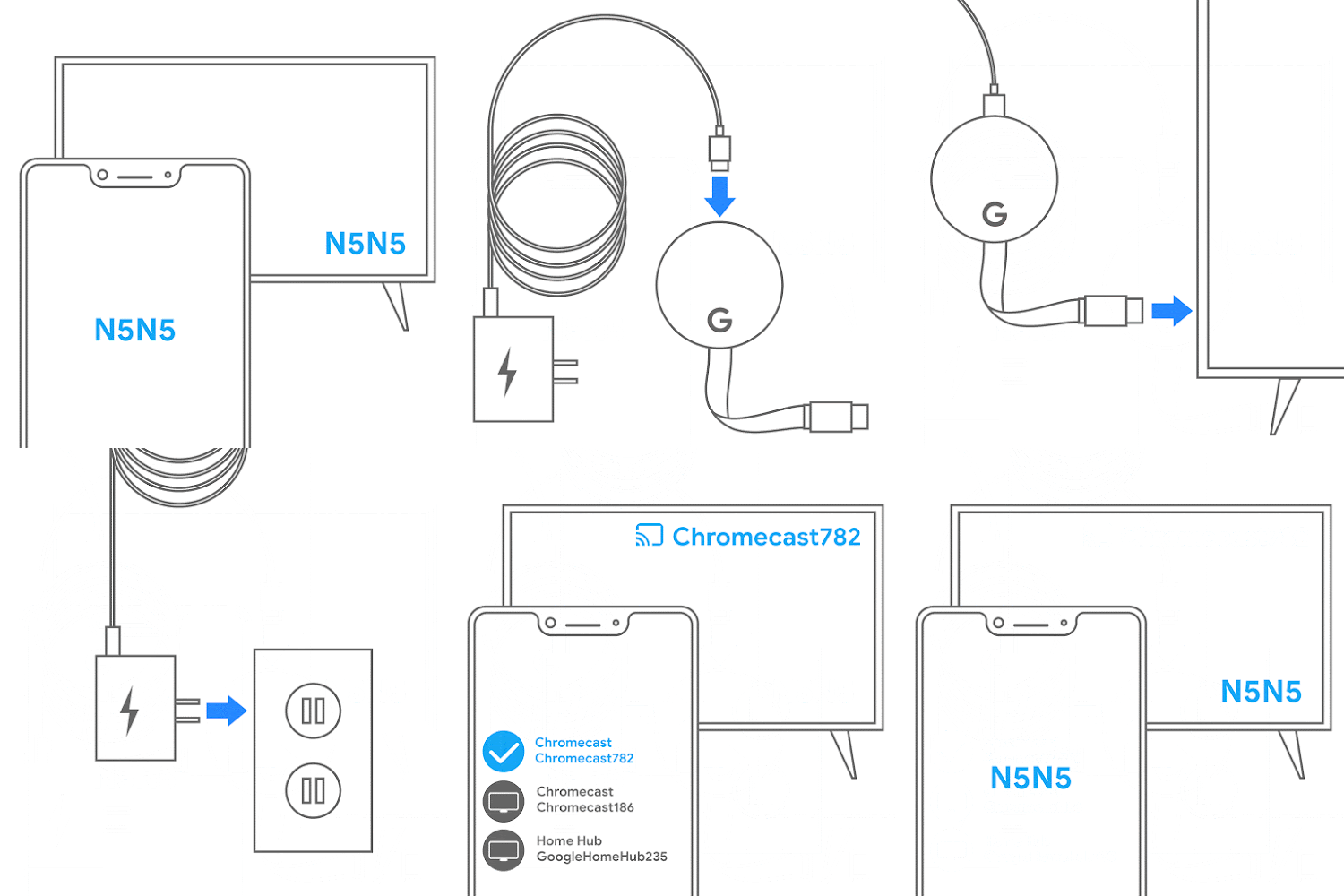
Learn what you need to get started
- A Chromecast device (3rd gen or earlier)
- The latest version of the Google Home app
- A Google Account
- A display device with an HDMI input, such as a high-definition television (HDTV)
- An Android phone or tablet with Android 9.0 or later (or an iOS device)
- If you experience connection issues with an earlier Chromecast model, try a 2.4 GHz Wi-Fi network instead.
- Access to a secure wireless network, with the password available

Important: Availability and performance of certain features, services, and applications are device and network dependent. They might not be available in all areas. Subscription(s) may be required, and additional terms, conditions and charges may apply.
Set up your Chromecast
Important:
- Make sure that you plug in your device before you connect it to the Google Home app. If your device isn't brand-new, factory reset it before you continue.
- Ensure that you have enabled location, Bluetooth, and camera permissions for the Google Home app to use these features.
- Open the Google Home app
.
-
At the top right, tap Add
Device
.
- Or, if a setup screen for your device appears, tap Set up or Next.
- If it’s not the correct device, tap Not now or Set up a different device.
- Or, if a setup screen for your device appears, tap Set up or Next.
-
Scan the QR code of your device. A check mark appears when the scan is complete.
- If you can’t scan the QR code:
- Tap Use setup code, then enter the setup code for your device.
Tip: The Google Home app provides additional details to help you locate and use your device setup code.
- Tap Add a different way, enter your device in the search bar, then select your device.
- Tap Use setup code, then enter the setup code for your device.
- If you can’t scan the QR code:
- Wait for your app to connect to the device. Once it’s finished, you’ll see a confirmation screen that says, “Connected.”
- Follow the in-app steps to complete setup.

 Device
- Manually connect to Wi-Fi:
- Go to your phone's Wi-Fi settings, search for a network named 'ChromecastXXXX' (or similar) and connect your phone to it.
- Return to the Google Home app to resume setup.
- Refresh the app: Uninstall and reinstall the Google Home app to clear cached data.
- Check permissions: Ensure the Google Home app has permissions for Location and Bluetooth, as well as Local Network for iOS devices, enabled in your phone's system settings.
- Perform a factory reset: If issues persist, press and hold the physical button on the Chromecast until the LED light changes to solid white.
For more detailed troubleshooting, go to Can't find Chromecast or Google TV Streamer in the Google Home app.
Troubleshoot your setup process
Important: You’ll no longer get support for your Chromecast (1st gen), including software or security updates and technical support from Google. You may notice a decrease in performance.
If your setup didn't work, try to:
- Reboot your Chromecast.
- Unplug your router, then plug it back in.
- Connect manually to your Chromecast's service set identifier (SSID).
- Open your phone's Settings app, tap Wi-Fi, and connect to the Chromecast SSID.
- Open the Google Home app and try to set up your device again.
- Factory reset your Chromecast.
- Contact support.